
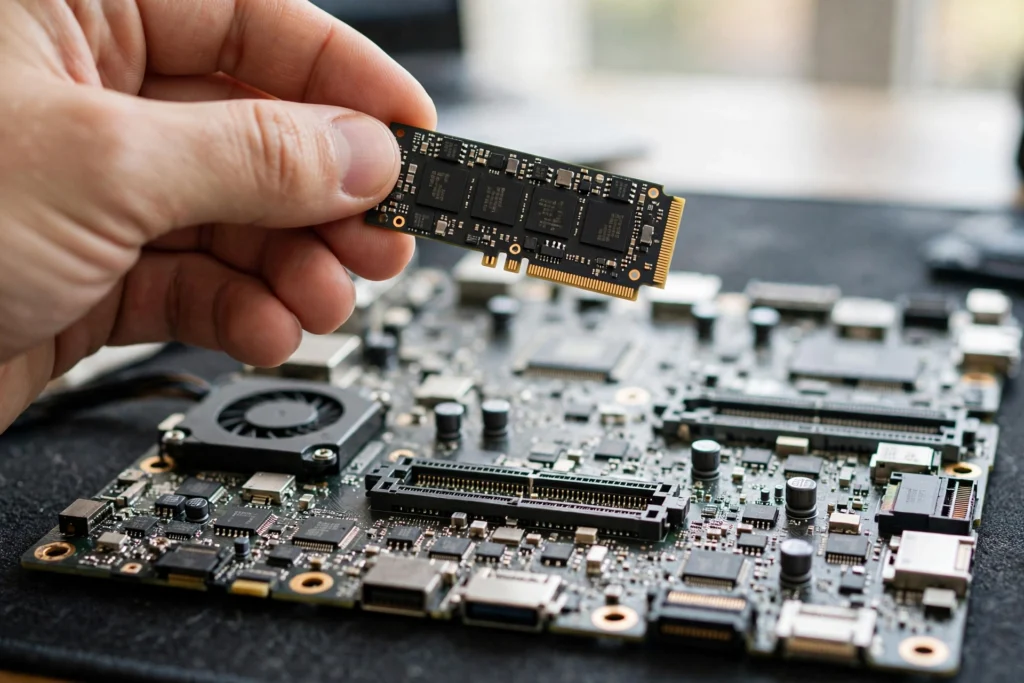
An SSD stores your files as electrical charges in tiny flash-memory cells, not on spinning disks. A small controller chip keeps track of where everything lives, so your computer can find a file almost instantly. That is why a computer with an SSD usually starts faster, opens apps sooner, and feels more responsive than one with an old hard drive.
Key Takeaways
- An SSD has no moving parts. It stores data in NAND flash memory.
- The controller is the traffic manager: it reads, writes, and organises data.
- SATA SSDs are a solid upgrade; NVMe SSDs over PCIe are usually faster still.
- Speed depends on the interface, the controller, and how full the drive is.
- SSDs do wear out slowly with writes, but for most home users they last for years.
- Keep backups anyway. No drive, SSD or hard drive, lasts forever.
What is inside an SSD?
Open an SSD — well, don’t, unless you enjoy voiding warranties — and you won’t find a spinning platter or a moving arm. You’ll find a circuit board with a few main parts. The NAND flash chips hold your data. The controller talks to your computer and decides where data goes. Some drives also have a small DRAM cache, a kind of short-term memory that helps the controller work faster, while others manage without it by using part of the main system memory instead.
Think of it like a library with no shelves to walk between. In a hard drive, a mechanical arm has to travel to the right spot on a spinning disk. In an SSD, the controller simply looks up the address and reads the cells. There’s no waiting for anything to spin up or move into place, and that difference shows up every time you open a large file or launch a game.
How does an SSD read and write data?
When you save a file, your computer sends it to the SSD controller. The controller breaks it into chunks and writes those chunks into empty flash cells, recording their locations in a map. When you open the file later, it checks the map, reads the cells, and sends the data back. All of this happens in milliseconds, which is why the whole thing feels instant.
Writing is a little more complicated than reading. Flash cells can’t simply be overwritten in place the way you might cross out a word on paper. The controller usually has to erase a whole block before it can write new data into it, and it quietly shuffles data around in the background to keep things tidy. This housekeeping is called wear levelling and garbage collection, and it’s one reason SSDs stay fast even after months of use. You don’t need to manage any of it yourself.
What is the difference between SATA and NVMe?
This is where many buyers get stuck, so here’s the simple version. SATA is the older connection, the same kind once used for hard drives. A SATA SSD is much faster than a hard drive, but it is limited by that older road. NVMe is a newer design built for flash memory, and it travels over PCIe lanes, a much wider and faster road inside your computer.
In everyday use, either one feels like a big step up from a hard drive. NVMe shines when you move very large files, edit video, or load huge games, because it can handle more data at once. If your computer only has a SATA slot, a SATA SSD is still a worthwhile upgrade. If it has an M.2 slot that supports NVMe, that’s usually the faster choice — just check your manual first, because not every M.2 slot supports NVMe.
Why does an SSD feel so much faster?
Three things work together. First, there’s no mechanical delay: no platter to spin, no arm to move. Second, flash memory can read many cells in parallel, so the drive can fetch scattered pieces of a file at the same time. Third, modern interfaces move data quickly once the controller has found it.
The result is most obvious in small, everyday moments. Your computer boots before you’ve finished your first sip of coffee. A photo editor opens without that long, spinning wait. A game level loads while you’re still reading the tip on the loading screen. None of this makes your internet faster, by the way — that’s a different part of your setup, as explained in our guide to how Wi-Fi works. But for anything stored on your own computer, an SSD removes a bottleneck you may not even have noticed.
How long does an SSD last?
Flash cells can only be written a limited number of times, so SSDs do wear out — eventually. Manufacturers usually rate this with a figure called TBW, or terabytes written, which is roughly how much data you can write to the drive over its life. For a typical home user who mostly reads files, browses, and saves documents and photos, reaching that limit can take many years.
A few habits help. Leave some free space on the drive, because a nearly full SSD has less room for its background housekeeping and can slow down. Avoid writing huge amounts of data to it every single day if you don’t need to. And keep a backup somewhere else, whether that’s an external drive or cloud storage, so a drive failure — rare, but possible — doesn’t mean losing your files. Think of an SSD as long-lived, not immortal.
Should you upgrade to an SSD, or replace one you have?
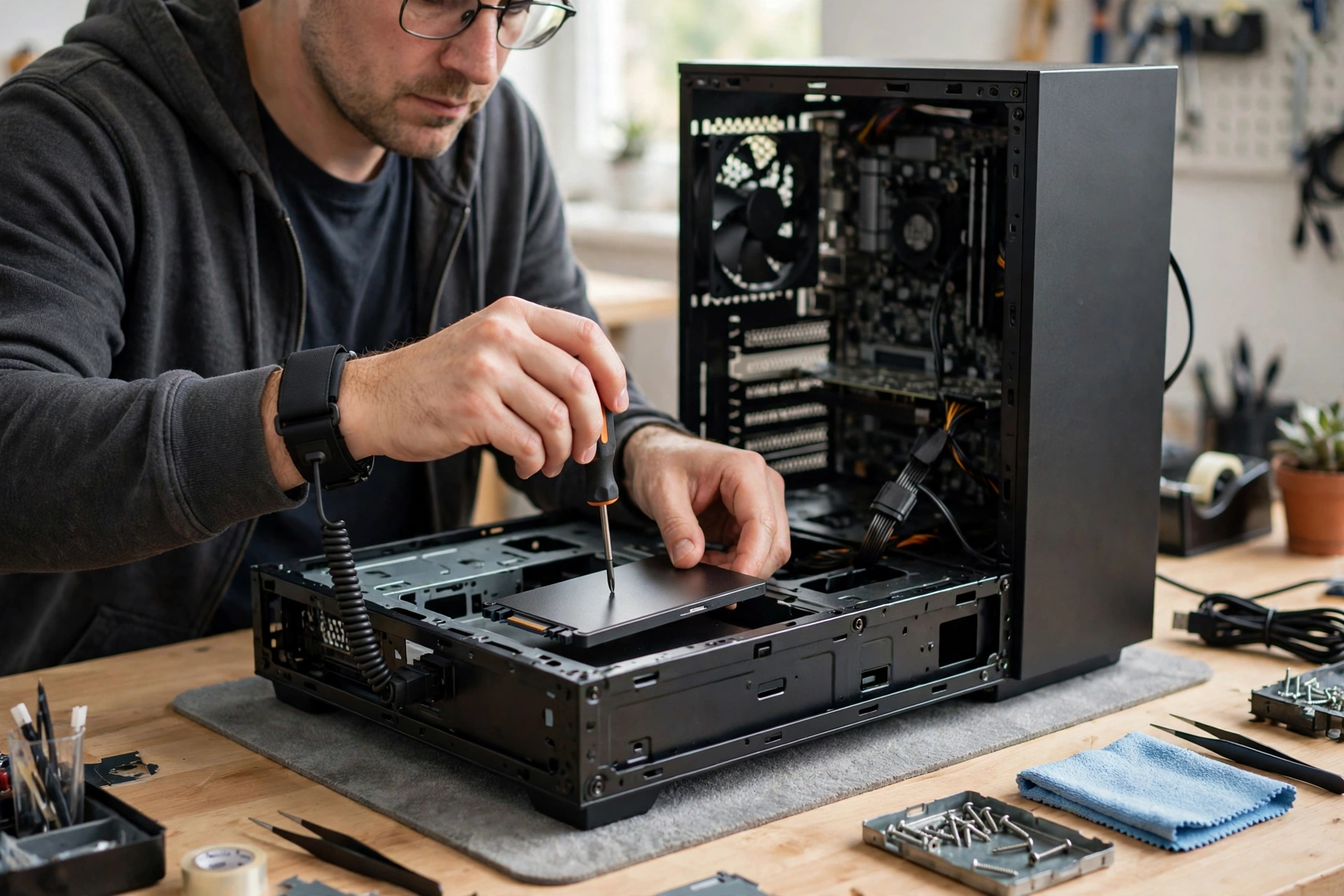
If your computer still runs on a hard drive and feels slow when starting up or opening apps, an SSD is often the single most noticeable upgrade you can make. It’s usually cheaper than a new computer, and for many desktops and older laptops the swap is straightforward, though you should check the size, connector, and your model’s manual before buying.
If you already have an SSD, the question is different. A larger or faster NVMe drive may help if you’re constantly running out of space or moving huge video files. For basic browsing and documents, though, the jump from one decent SSD to a faster one is far less dramatic than the jump from a hard drive. Spend the money where you’ll actually feel it, and put the rest toward a backup drive instead.

FAQs
What does SSD stand for?
SSD stands for solid-state drive. “Solid-state” means it stores data in chips with no moving parts, unlike a hard drive’s spinning disks.
Is an SSD better than a hard drive?
For speed, silence, and resistance to knocks, yes. Hard drives still make sense in some cases for very large, cheap storage, such as a big media archive you rarely touch.
Do SSDs lose data if unplugged?
No, not in normal use. SSDs use non-volatile flash memory, so your files stay put when the power is off. They are not like RAM, which clears when a computer shuts down.
Can I put an SSD in an old laptop?
Often, yes, if the laptop has a standard 2.5-inch bay or an M.2 slot. Check the laptop’s manual or specifications first, since some very thin laptops have storage soldered in place and can’t be upgraded.
Does an SSD make games run faster?
It usually makes games load faster and reduces stutter when a game streams in new areas. It doesn’t normally raise your frame rate much on its own, since that’s mostly down to your graphics card and processor.
Conclusion
An SSD works by storing data in flash-memory cells and letting a controller find it instantly, with no spinning disks or moving arms in the way. That simple idea is why computers feel so much quicker once they have one. If your machine still uses a hard drive, check what size and connector it supports, back up your files first, and consider an SSD as your next upgrade — it’s one of the few changes you can actually feel every time you press the power button. For a deeper look at the technology, see the Wikipedia overview of solid-state drives and Kingston’s SSD guide, and if you’re weighing wireless options for your other devices, our guides to how Bluetooth works and how wireless charging works may help too.