
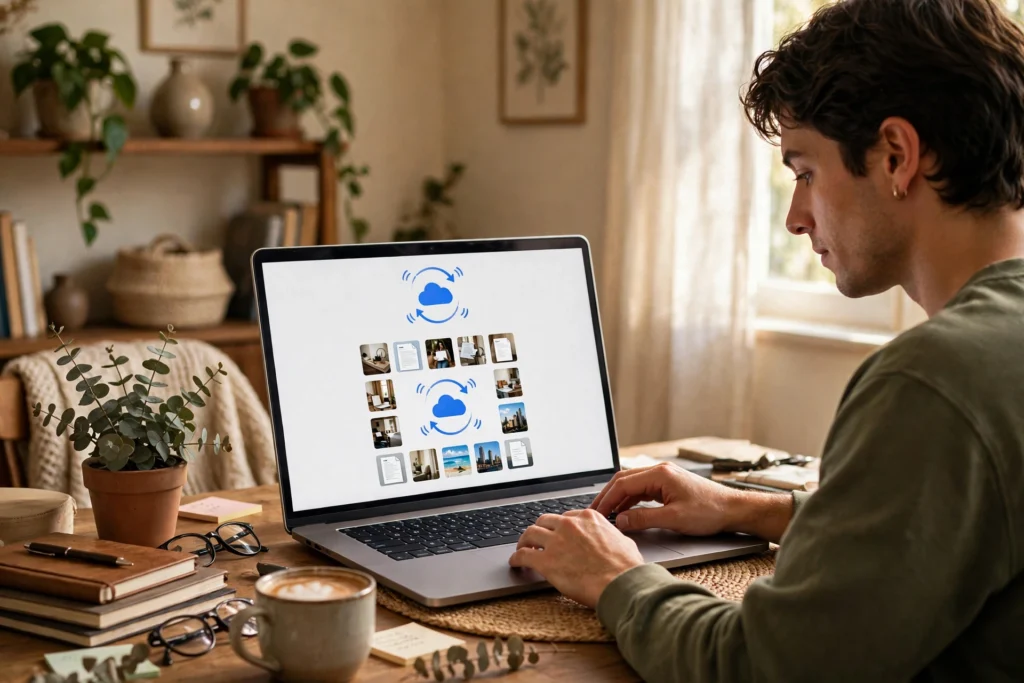
Cloud storage keeps a copy of your files on computers run by someone else, so you can open them from your phone, laptop, or tablet without carrying them around. When you save a photo, it travels over the internet to a data centre, gets stored on more than one drive, and shows up on your other devices once they sync.
Key Takeaways
- Cloud storage is really just storage on remote servers, reached over the internet.
- Your files are usually copied to more than one machine, which helps if one drive fails.
- Sync keeps the same version on your devices, but it is not quite the same as a backup.
- Encryption, strong passwords, and two-factor authentication matter more than the brand name.
- Check storage limits, offline access, and export options before you commit to a service.
Where do your files actually go?
They don’t float in the sky, despite the name. They sit on hard drives and solid-state drives inside data centres — big, cooled buildings full of server racks. When you upload a file, your device breaks it into pieces for sending, then the provider’s system reassembles it and stores it, often in more than one location.

That duplication is the quiet part of the whole idea. If one drive stops working, another copy can step in, and you may never notice. Providers also spread copies across machines so a single fault doesn’t take your whole photo library with it. It doesn’t make loss impossible, though. Accounts get locked, files get deleted by mistake, and services change their terms. A copy in the cloud is a great safety net, but it shouldn’t be your only copy of anything precious.
How does sync keep all your devices showing the same files?
Sync is the part most people actually feel. Edit a document on your laptop, close the lid, open your phone on the train, and the new version is there. Here’s the simple version of what happens in between.
First, your device notices a change and sends just the changed parts where it can, rather than re-uploading a huge file from scratch. The cloud service records the newest version, then tells your other signed-in devices to fetch it. If two devices edit the same file while offline, you may end up with a conflict copy, which is the service’s way of saying, “I couldn’t safely pick one, so I kept both.” That’s annoying, but it’s better than silently overwriting your work.
What are file, block, and object storage?
You don’t need to memorise these terms to use cloud storage, but they explain why services feel different under the hood.
File storage works like the folders on your computer, with a clear hierarchy. It’s easy to browse and share, which is why personal cloud drives feel familiar. Block storage chops data into fixed-size blocks, each acting a bit like a separate virtual drive. It’s fast and suits databases and apps that need quick, low-delay access. Object storage treats each file as an object, bundled with its data, metadata, and an identifier, and stored flat rather than in nested folders. That makes it a good fit for huge piles of photos, videos, and backups that don’t need a folder tree.
What keeps your files safe — and what doesn’t?
Security in cloud storage is shared. The provider looks after the buildings, the hardware, and much of the infrastructure. You’re still responsible for your account, your password, and what you choose to share.
Encryption helps in two places: while files travel to the data centre, and while they sit on the provider’s drives. Some services also offer end-to-end encryption, where only you hold the key. That gives stronger privacy, but it can limit handy features like searching inside files or previewing them on the web, and losing the key can mean losing access for good.

What are the limits and costs?
Most services start free with a modest amount of space, then charge a monthly or yearly fee for more. That trade-off is usually worth it if you actually use the space, but watch for a few common catches.
Offline access matters as well. If you travel, work somewhere with patchy coverage, or just want to edit on a plane, mark the folders you need as available offline ahead of time. A file that’s only in the cloud is no help when you have no signal, much like a GPS route that hasn’t been downloaded yet.
How do you choose a cloud storage service?
Start with what you’ll actually store. Photos and family videos need simple sync and a decent app. Work documents need version history, sharing controls, and a way to recover an earlier draft. A small business might need admin controls and a clear backup plan on top of that.
Then check the practical bits: how much space you get, what happens when you hit the limit, whether files stay available offline, and whether you can export everything without a fight. Try the free tier with a small, unimportant folder first, ideally over Wi-Fi so a large test upload doesn’t eat your mobile data. Upload, edit on another device, share a file, delete a test file and restore it. That ten-minute test tells you more than any feature list. Bluetooth is handy for a quick nearby transfer and NFC can help with a tap-to-share moment, but neither replaces cloud sync when you want the same files on every device, everywhere.
Frequently Asked Questions
Is cloud storage the same as a backup?
Not exactly. Sync keeps your devices matching, so a deletion on one device can spread to the others. A backup is a separate, point-in-time copy you can restore even after a mistake. Many people use both: cloud sync for everyday access, plus a separate backup for the files they’d hate to lose.
What happens if I run out of space?
New uploads usually stop until you free space or upgrade, and some services may stop syncing until the problem is fixed. Photos and documents you already stored normally stay put, but check your provider’s policy rather than assuming.
Can I access cloud files without the internet?
Only if you’ve marked them for offline use, or they’re already downloaded on that device. Otherwise, you’ll need a connection to open them. Download the folders you need before you travel.
Is my data private in the cloud?
It depends on the service and your settings. Files are usually encrypted in transit and at rest, but the provider may still hold the keys unless you use end-to-end encryption. Read the privacy settings, limit sharing, and use two-factor authentication.
Should I still keep a local copy?
Yes, for anything important. A second copy on an external drive or another service protects you if an account is locked, a file is deleted by mistake, or a service changes. Two copies in different places beat one copy anywhere.
Conclusion
Cloud storage works because it turns a distant data centre into an extension of your own devices: upload once, sync everywhere, and lean on duplicate copies when hardware fails. The catch is that sync, backup, and privacy are three different things, and mixing them up is how files get lost.
A practical next step is small: pick one folder that matters — say, this year’s photos — check its sync, sharing, and trash settings, turn on two-factor authentication, and make one separate backup copy somewhere else. Once that folder is sorted, the rest of your cloud storage gets a lot easier to trust.
For a broader overview, see the explanations of cloud storage on Wikipedia and IBM’s guide to cloud storage.