

Mesh Wi-Fi works by spreading several small router units, called nodes, around your home so they share one network name and pass your devices between them. Instead of one router shouting from a corner, the nodes talk to each other and hand your phone or laptop to whichever node is closest.
Key Takeaways
- A mesh system is two or more nodes forming one Wi-Fi network with a single name and password.
- Nodes pass traffic to each other over a wireless link, called the backhaul, or over Ethernet cables.
- Your devices move between nodes automatically, so calls and streams should not drop as you walk around.
- Mesh Wi-Fi suits larger homes and thick walls; a small flat is usually fine with one good router.
- Placement matters more than extra nodes.
What is a mesh Wi-Fi system?
A mesh Wi-Fi system replaces a single router with a small team of identical-looking units. One node connects to your broadband modem as the main router; the others, called satellites or points, sit in other rooms and extend the network. To your phone, the whole thing looks like one network: one name, one password, and no separate “upstairs” network to join.
That single-network trick is the point. With an old-style range extender, your phone often clings to a weak signal from the main router even when a stronger extender is nearby. A mesh system manages the handover itself. It builds on how Wi-Fi works in a normal home, but spreads the signal across several boxes instead of one. Google’s own guide explains what mesh Wi-Fi is in similar terms: several points working together as one network.
How do the nodes talk to each other?
The nodes need a way to pass traffic back to the main router, and that link is called the backhaul. In most home systems it is wireless: the nodes use one of their radio bands to chat with each other, while your devices use the others. Some higher-end kits reserve a dedicated third band for node-to-node traffic, leaving more capacity for your devices.
A wired backhaul is stronger when your home allows it: with Ethernet cables between the nodes, they stop competing with your devices for airtime. Either way, the nodes constantly measure their links. If one path gets congested or a node goes offline, traffic reroutes through another node. That self-healing habit is where the word “mesh” comes from: in mesh networking, every node can connect to more than one other node, so there is no single weak link.
How does your phone switch between nodes?
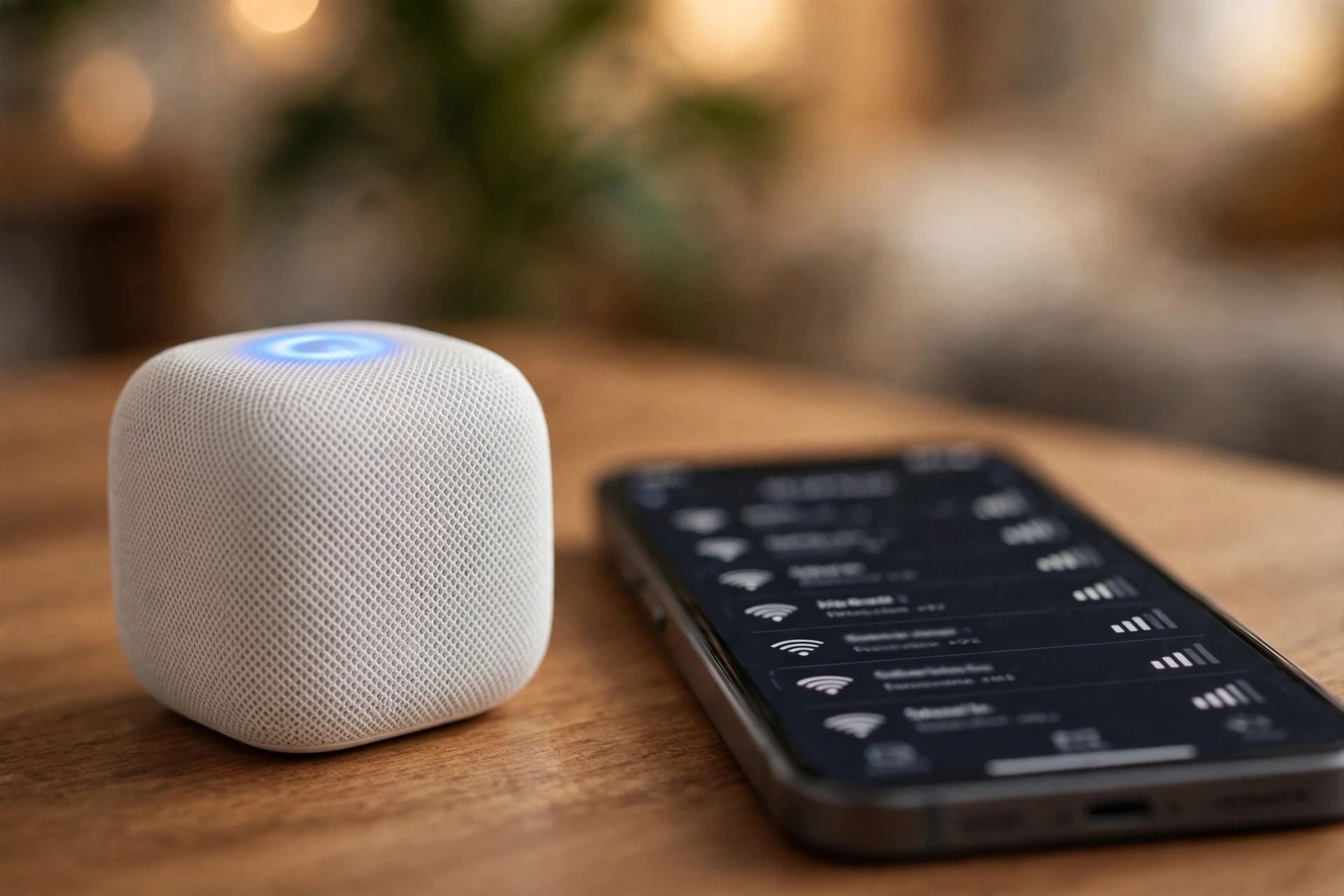
When you walk from the living room to the bedroom on a video call, your phone needs to change nodes without dropping the call. Mesh systems handle this with Wi-Fi standards that let the nodes and your phone agree on the handover: the nodes share signal-strength and load information, and when your phone’s signal weakens, the system nudges it to the stronger neighbour.
A good handover takes a fraction of a second, so a call may stutter briefly but should not cut out. The same coordination balances the load, steering devices to a quieter node when one is busy. Setup is simple too — many kits use Bluetooth during the first install — and the app shows which devices are connected where.
Mesh Wi-Fi vs a single router vs a range extender
A single router is simpler and cheaper, and in a small home it is often the better choice. One strong router in the middle of a flat can cover every room. The trouble starts in larger homes, or homes with thick brick walls or several floors, where the signal fades before it reaches the far rooms.
A range extender repeats the router’s signal, but usually creates a second network name and halves the speed, since it uses the same radio to listen and to talk. Mesh nodes avoid both problems: they share one network name and use separate radios for the backhaul, so the speed penalty is much smaller. The trade-off is cost, and mesh Wi-Fi cannot make your broadband faster than the plan you pay for — it spreads the connection you already have more evenly.
How many nodes do you need?
Most manufacturers suggest one node per 100 to 140 square metres, but the layout of your home matters more than the raw size: a long, narrow house needs more nodes than a square one, and thick walls, floors, and large metal appliances all eat into the range.
Start with the kit size the manufacturer recommends, then test it. Walk around with your phone and run a speed test in each room. Add a node only if a specific room is still weak — buying extra nodes “just in case” is a common mistake, since nodes placed too close together can interfere with each other. That matters more as homes fill up with connected gadgets: smart speakers, cameras, and phones all share the same airwaves.

Where should you place the nodes?
Placement is where most mesh setups succeed or fail. Each node should sit roughly halfway between the main router and the area it needs to cover, close enough to get a strong signal from its neighbour. A good rule of thumb is no more than two rooms apart, and within about 10 metres of the next node in open space.
Keep nodes out in the open, at about waist to chest height, on a shelf or a table rather than on the floor or inside a cupboard. Avoid thick brick walls, large mirrors, fish tanks, and kitchen appliances, which block or reflect the signal. Home security cameras are a good test case: a camera by the front door needs a strong signal, so place a node within easy reach of it.
What are the downsides of mesh Wi-Fi?
Mesh Wi-Fi is not a magic fix. The first drawback is price: a three-node kit can cost several times more than a decent single router, and you may need to replace the whole kit when a new Wi-Fi standard arrives, rather than just one box. The second is speed between nodes: a wireless backhaul shares the airwaves with your devices, so the farthest node is usually slower than the main one.
The third is privacy and control. Most mesh kits are managed through a phone app and a cloud account, and some features, such as parental controls or usage reports, send data to the manufacturer’s servers. Check the privacy settings when you set the system up, and turn off cloud features you do not want. Change the default admin password and keep the firmware updated, as with any router.
Frequently Asked Questions
Does mesh Wi-Fi make my internet faster?
Not beyond the speed of your broadband plan. Mesh Wi-Fi spreads your existing connection more evenly around your home, so far rooms get closer to the speed you already pay for.
Can I use mesh Wi-Fi with my current broadband provider?
Yes, in most cases. The main node plugs into your modem or your provider’s router, so it works with most fibre, cable, and DSL connections. A combined modem-router may need switching into bridge or modem mode first.
How many devices can a mesh system handle?
Most home mesh kits handle 50 to 100 devices comfortably, covering phones, laptops, smart speakers, and the usual connected gadgets. Check the kit’s stated limit if your home has far more than that.
Is mesh Wi-Fi secure?
It uses the same WPA2 or WPA3 encryption as a normal router, so the connection itself is secure. Set a strong Wi-Fi password, change the admin password, and keep the firmware updated.
Do I need to replace my old router?
The main mesh node takes over the routing job, so your old router can usually be retired or put into bridge mode. If your provider supplied a modem-router combo, keep it as a modem and let the mesh node handle the Wi-Fi.
Conclusion
Mesh Wi-Fi works by turning one router into a team of nodes that share a single network and hand your devices between them as you move. For a larger home or a house with stubborn dead spots, it is one of the simplest upgrades you can make. The practical next step is to map your dead spots first: walk around with a speed-test app, note where the signal drops, and decide whether a two-node or three-node kit covers those rooms.