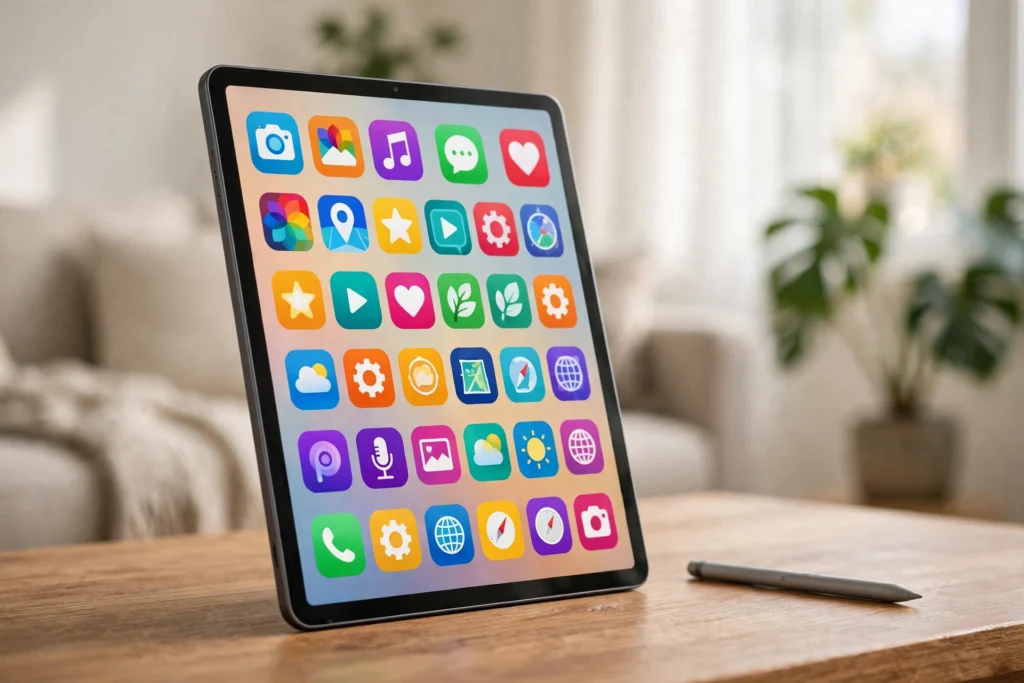
A tablet computer is a thin, flat computer built around a touchscreen. There is no built-in keyboard or mouse: you tap, swipe, and pinch the screen itself. Inside that slim slab sit a mobile chip, battery, storage, and Wi-Fi, so a tablet works like a big smartphone — only with a screen large enough for comfortable reading, drawing, and video.
Key Takeaways
- A tablet computer is a portable touchscreen computer with no built-in keyboard, sitting between a smartphone and a laptop in size and ability.
- Most tablets run a mobile operating system such as iPadOS or Android, and use the same kinds of apps as phones.
- The touchscreen senses your finger through tiny electrical fields, not pressure, which is why a light tap is enough.
- Tablets suit reading, streaming, note-taking, and video calls best; heavy typing and demanding desktop software still belong on a laptop.
What makes a tablet different from a phone or a laptop?
Size is the obvious difference, but the real one is how you use it. A phone fits in a pocket and is built for quick checks. A laptop opens into a keyboard and a screen, and runs full desktop software. A tablet sits in the middle: big enough to read a whole page or watch a film comfortably, small enough to carry in one hand.
That middle ground shapes the whole design. Tablets usually run mobile operating systems — iPadOS on Apple’s iPads, Android on most others, Windows on a few — so they run apps from an app store, just like a phone, and wake instantly. There is no fan in most tablets and very little waiting around. The trade-off is that some desktop programs either don’t exist on tablets or arrive in a simpler form, with fewer menus and tools.
Tablets also borrow their insides from phones. The chip is a mobile processor, built to sip power rather than sprint, and the battery is a flat lithium-ion cell spread across the back. That is why a tablet can last through a long flight’s worth of films and still have charge left for the evening.
How does the touchscreen actually work?
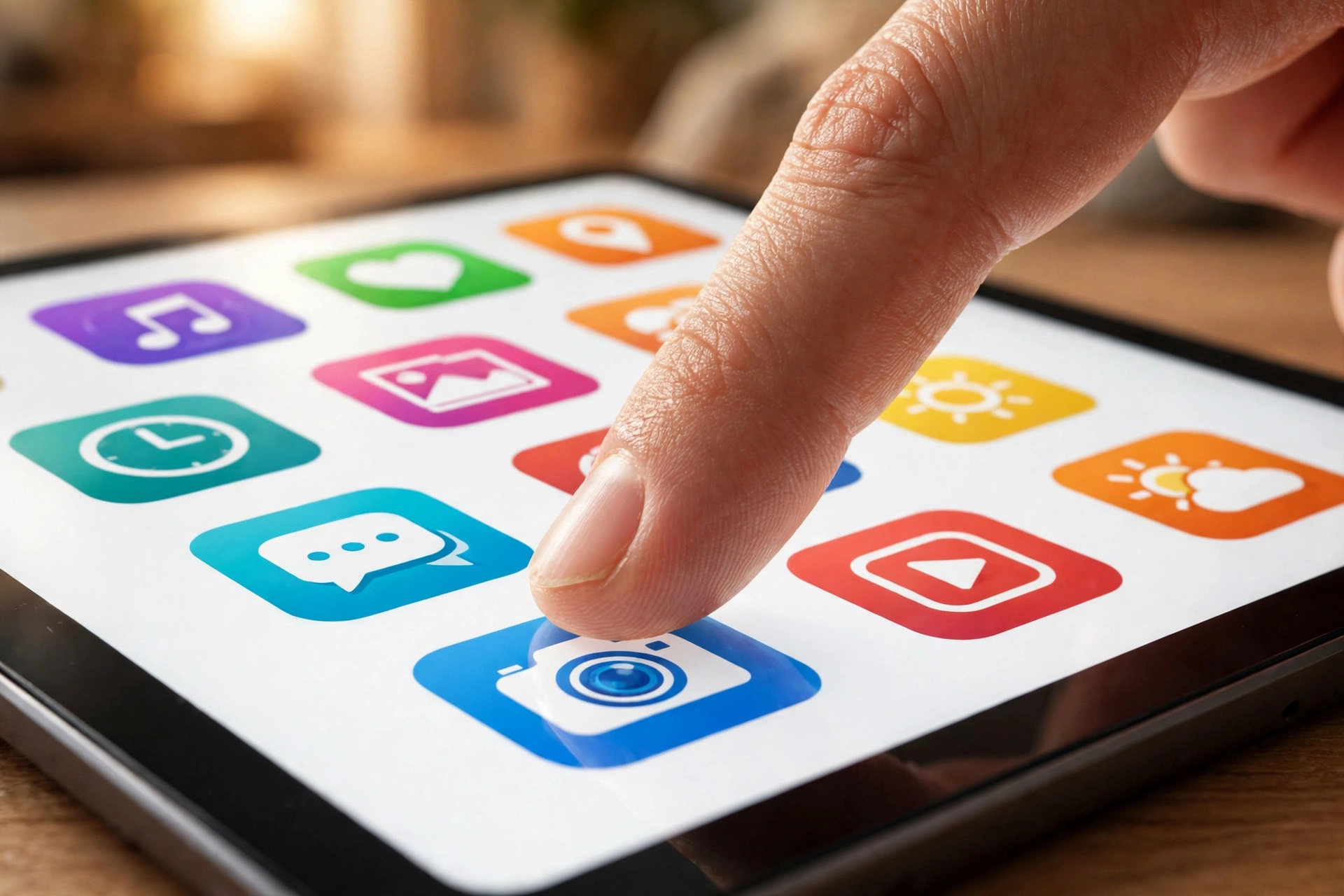
Nearly every modern tablet uses a capacitive touchscreen. Beneath the glass sits a grid of transparent electrodes carrying a tiny electrical charge. Your finger is slightly conductive, so when it comes near the screen it disturbs the field at that exact spot. The tablet’s controller measures the change, works out the coordinates, and the software reacts — opening an app, scrolling a page, or moving a slider.
Because the screen senses electrical fields rather than pressure, only the lightest touch is needed — which is also why a tablet ignores most gloves, and why a stylus needs to be the active, battery-powered kind. Most tablets track several fingers at once, which is what makes pinch-to-zoom feel natural.
Above the touchscreen sits the display itself, usually an LCD or OLED panel — the most expensive part of a tablet. Our explainer on What Is OLED? goes deeper on how those panels make light and colour.
What is inside a tablet?
There is surprisingly little inside a tablet. A single circuit board holds the processor, memory, and storage. The processor, often called a system-on-a-chip, bundles the main processor, the graphics, and the parts that handle Wi-Fi and Bluetooth onto one small square. Memory is modest by laptop standards, usually 4 to 16 gigabytes, and storage is flash memory — fast and silent, the same kind as in a phone.
The rest of the space is battery. A flat lithium-ion pack fills most of the case, which is why tablets feel solid and balanced. Our guide to how a laptop battery works covers the same chemistry, and the same care tips apply: avoid leaving a tablet baking in a hot car, and don’t worry about charging it overnight, since modern devices stop themselves when full.
Around the edges are speakers, microphones, cameras front and back, and a USB-C port for charging and accessories. Some tablets add mobile data for use away from Wi-Fi, and nearly all support Bluetooth, which is how a keyboard, headphones, or stylus pairs up in seconds.
Tablet vs phone vs laptop: which one fits which job?
| Tablet | Smartphone | Laptop | |
| Screen | 7–14 inches, touch-first | 5–7 inches, touch-first | 11–17 inches, keyboard-first |
| Typing | On-screen keyboard; add-on keyboard optional | On-screen keyboard | Full physical keyboard |
| Battery life | Often 8–12 hours of mixed use | A day of light use | Usually 5–10 hours |
| Software | Mobile apps | Mobile apps | Full desktop programs |
| Best for | Reading, streaming, notes, calls | Messaging, photos, quick tasks | Long documents, coding, editing |
The pattern is simple. If the job is mostly looking — reading, watching, browsing, sketching — a tablet is often the nicest tool for it. If the job is mostly typing or running heavy software, a laptop still earns its keep. And if the job is quick and pocket-sized, that is what the phone is for. If most of your watching happens on the couch rather than in your hands, see how a smart TV works for the living-room side of the story.
What are tablets actually good for?
Picture a student called Maya, who reads course PDFs on the train, takes handwritten notes in lectures with a stylus, and joins a video call from her kitchen table in the evening. A laptop would do all of that, but it would be heavier and need charging by mid-afternoon. A phone would run the same apps, but reading a textbook page on a six-inch screen gets old fast. The tablet fits her day: light enough to carry everywhere, big enough to read and write on, and charged enough to last until bedtime.
The same shape works for plenty of other people: cooks following recipes on the counter, travellers who download films before a flight, grandparents on video calls, and artists sketching with a stylus.

What should you check before buying a tablet?
Start with the screen: 10 or 11 inches suits most people, 8 inches suits one-handed reading, and 12 or 13 inches suits drawing and split-screen work. Next, storage — 64 gigabytes fills up fast, so 128 gigabytes is a safer floor if you plan to keep things offline.
Battery claims deserve a pinch of salt, since manufacturers quote gentle video playback time rather than gaming or video calls. Check the operating system and app store too, as that decides which apps you can install. And look at the extras: a keyboard case can turn a tablet into a passable laptop for emails and essays, while a stylus is worth it only if you will actually draw or handwrite notes. Wireless charging is still rare on tablets, so expect a cable — and check whether one is even in the box.
Finally, think about updates. Tablets get them for several years, but cheaper models stop sooner. A tablet that still gets updates stays secure and keeps running new apps; one that doesn’t slowly becomes a very nice picture frame.
Frequently Asked Questions
Is a tablet a computer?
Yes. A tablet computer is a real computer: it has a processor, memory, storage, an operating system, and apps. It just uses a touchscreen instead of a keyboard and mouse, and runs mobile software rather than desktop software.
Can a tablet replace a laptop?
For reading, streaming, email, and light work, often yes — especially with a keyboard case. For heavy typing, spreadsheets, coding, or professional editing software, a laptop is still the better tool.
Do tablets need Wi-Fi?
Most tablets use Wi-Fi, but they can also play downloaded films, books, and games offline. Some models have mobile data built in, so they can connect anywhere a phone can.
How long does a tablet battery last?
Most modern tablets last around 8 to 12 hours of mixed use — reading, browsing, and video — on a single charge. Gaming and video calls drain the battery faster.
Are tablets good for kids?
They can be, with parental controls switched on and screen-time limits set. A sturdy case is worth the money, and a dedicated kids’ profile keeps app purchases and web browsing under control.
Conclusion
A tablet computer is the middle child of personal computing: bigger and calmer than a phone, lighter and simpler than a laptop. It won’t do everything, and it shouldn’t try. But for reading, watching, sketching, and staying in touch, it is often the device people actually reach for. If that sounds like your day, list the three things you would use it for most, then pick the screen size and storage that fit those three jobs.
Further reading: Wikipedia — Tablet computer · Apple — iPad