
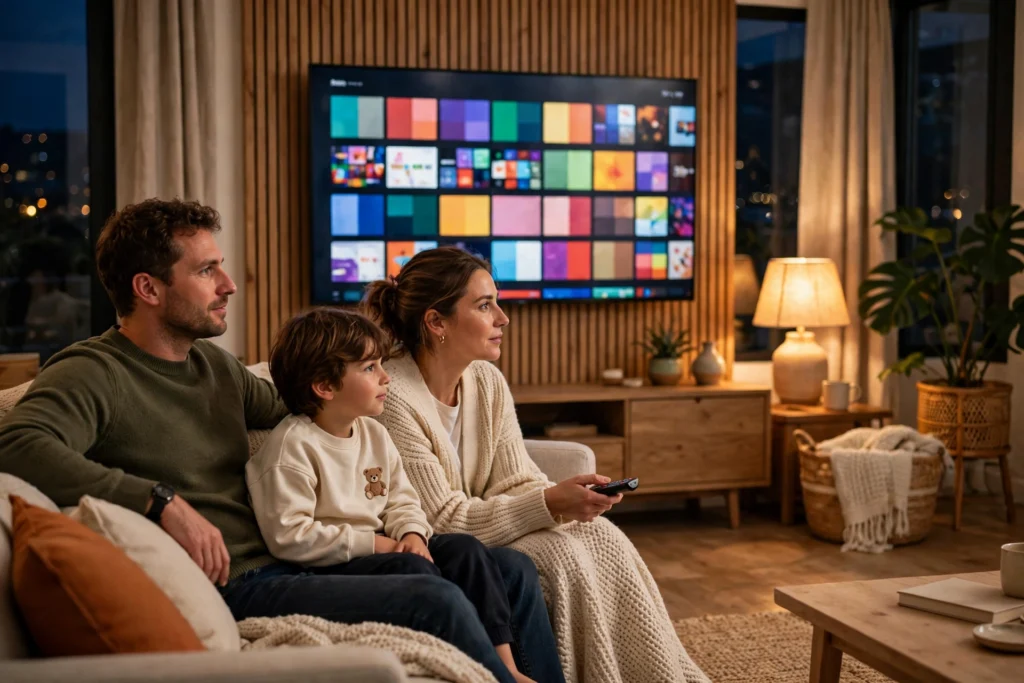
A smart TV works by combining a television screen with a small built-in computer. That computer runs an operating system, connects to your home internet, and runs streaming apps — so the TV can fetch films, shows, and music on its own, without a separate box or stick plugged in.
Key Takeaways
- A smart TV is a normal TV panel plus a built-in computer chip and operating system.
- It connects to the internet over Wi-Fi or an Ethernet cable, then streams video in small pieces called packets.
- Apps come from the TV’s own app store, and the home screen is where you pick what to watch.
- You can also cast from a phone, use voice control, and connect soundbars and consoles over HDMI or Bluetooth.
- Smart TVs can collect viewing data, so check the privacy settings after setup.
What makes a TV “smart”?
An older television was mostly a display. It showed whatever came down the aerial, cable, or an HDMI lead, and that was about it. A smart TV adds three things inside the same case: a processor, memory, and an operating system, much like a phone or a small computer.
The processor runs the menus and the apps. The memory keeps a few apps ready so they open quickly. And the operating system — systems such as Google TV, Samsung’s Tizen, LG’s webOS, or Roku OS — ties it all together. It draws the home screen, manages the app store, handles updates, and talks to the network. When you press the home button, you are looking at that operating system at work.
That is why two smart TVs can feel quite different even when their screens look alike. The panel decides how the picture looks; the software decides how easy the TV is to live with.
How does a smart TV connect to the internet?
A smart TV needs an internet connection before any of its clever features switch on. Most people connect over Wi-Fi: you pick your home network on screen, type in the password once, and the TV remembers it. If your router sits near the TV, a wired Ethernet cable is the steadier option, since it is not affected by thick walls or a busy wireless network.
Once connected, the TV can reach the internet, download app updates, and stream video. Streaming works by breaking a film or show into small chunks. The TV requests a chunk, plays it, and requests the next one, keeping a short buffer ahead so a brief dip in speed does not freeze the picture. If your connection slows down, the TV usually drops to a lower picture quality first rather than stopping altogether — which is why a stuttering film often looks softer before it pauses.
A good rule of thumb: 4K streaming needs a faster, steadier connection than HD. If films keep buffering, try the wired connection or move the router closer.
What is the home screen, and where do apps live?
Switch a smart TV on and you land on the home screen. It is a grid of app tiles — streaming services, catch-up TV, music, games, and sometimes a web browser — plus rows of recommendations based on what you have watched.
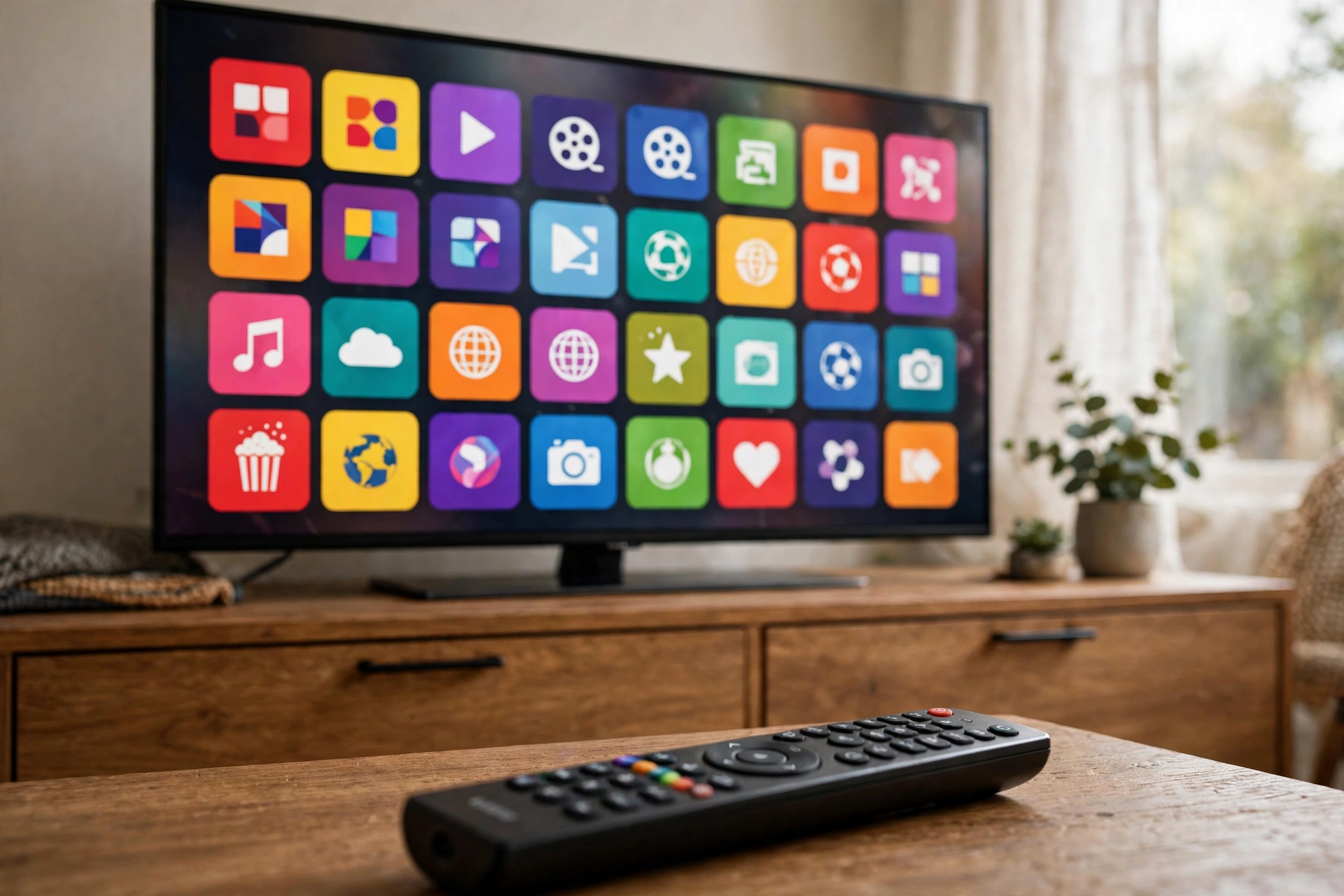
Apps are either preloaded by the manufacturer or downloaded from the TV’s app store, in much the same way you add apps to a phone. Not every app is available on every TV, though. Each operating system has its own store, so a niche streaming service might exist on Google TV but not on an older Tizen set. That is worth checking before you buy, especially if there is one service your household cannot live without.
Opening an app signs you in, and from then on the TV remembers you. Many apps also sync your watchlist and progress with your phone or laptop, so you can start a series on one screen and finish it on another.
How does the picture get from the internet to the screen?
Inside the TV, a video decoder turns the compressed stream back into moving pictures. Modern sets handle common formats such as H.264, HEVC, and — on newer models — AV1. The image processor then takes over: it upscales lower-resolution video to fill a 4K panel, adjusts colour and contrast, and smooths motion if you have that setting switched on.
The panel itself is the last step. Most smart TVs today use LED-backlit LCD or OLED panels. An OLED lights each pixel on its own, which gives deep blacks and strong contrast, while a good LED set can go brighter, which helps in a sunny room.
Sound follows a similar path. The TV decodes the audio, plays it through its own speakers, or sends it to a soundbar or speaker system over HDMI ARC/eARC or Bluetooth. If dialogue sounds muffled, a soundbar usually makes a bigger difference than any picture setting.
How does casting from a phone work?
Casting lets your phone hand a video over to the TV. You tap the cast icon in an app on your phone, pick your TV from the list, and the TV takes over the stream directly from the internet. Your phone then acts as a remote — you can pause, skip, or change the volume — and you can keep using the phone for other things without interrupting the film.
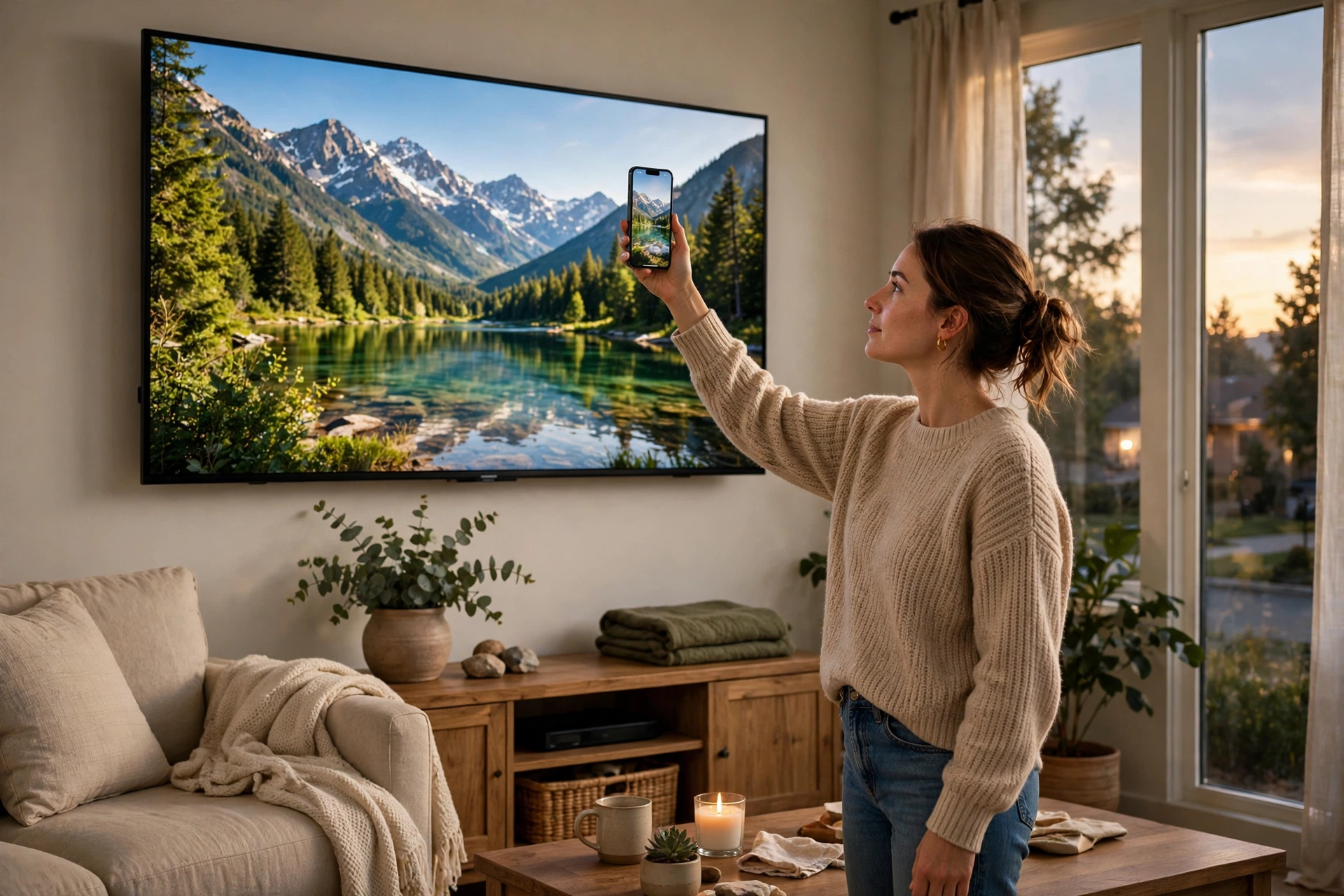
Screen mirroring is the close cousin of casting, but it works differently: it copies exactly what is on your phone’s screen, notifications and all, onto the TV. Casting is usually the smoother choice for films, while mirroring is handy for showing photos. Apple devices use AirPlay, Android and many other devices use Chromecast built-in, and most smart TVs support one or both. A digital photo frame works on a similar idea — a screen that fetches pictures over Wi-Fi — but a smart TV is built for video first.
What else can a smart TV do besides stream?
Quite a lot, once it is set up. Most smart TVs have voice control built into the remote, so you can search for a show by speaking instead of typing letter by letter. Many can act as a smart-home hub, showing a doorbell camera or switching off lights through the TV menu. Game consoles, Blu-ray players, and streaming sticks still plug in over HDMI, and the TV folds them into the same home screen, so you are not juggling five remotes. If you want a big picture you can carry from room to room instead, a portable projector is the carry-around alternative.
What about privacy?
Because a smart TV is connected, it can send information back as well as receive it. Many sets track which apps you open and what you watch, and some use that viewing data for advertising. Research has shown that streaming devices can share viewing data with outside companies, so this is not just a theoretical worry.
The practical answer is to spend five minutes in the settings after setup. Look for options labelled viewing data, personalised ads, or automatic content recognition, and switch off anything you are not comfortable with. Keep the software updated too: updates fix security holes as well as adding features. And if your TV has a built-in camera or microphone, check whether it is on — most models let you disable them. Wikipedia’s Smart TV article covers these privacy and security concerns in more detail, and LG’s smart TV guide explains how the connection and app setup work on its own sets.
FAQs
Do I still need a streaming stick with a smart TV?
Usually not. A smart TV already runs the main streaming apps, so a stick only helps if an app you want is missing from the TV’s store, or if the TV’s software has become slow with age.
Can a smart TV work without the internet?
Yes, but only as a plain TV. You can still watch aerial or cable channels and anything plugged into HDMI, but streaming apps, the app store, and updates all need an internet connection.
Why does my smart TV feel slow?
The built-in chip is weaker than a phone’s, and apps grow heavier over time. Clearing an app’s cache, removing apps you never open, and restarting the TV now and then usually helps. If it stays sluggish, a streaming stick can give an older set a second wind.
Is a smart TV the same as an Android TV or Google TV?
Not quite. Android TV and Google TV are operating systems that run on smart TVs, just as Tizen and webOS are. “Smart TV” is the general term; the platform name tells you which app store and interface you are getting.
Should I use Wi-Fi or a cable for my smart TV?
A cable is steadier for 4K streaming, especially if the router is in another room. Wi-Fi is fine for most viewing if the signal is strong — try Wi-Fi first, and switch to a cable only if films keep buffering.
Conclusion
A smart TV is a television with a small computer built in: an operating system, apps, and an internet connection turn a plain screen into a streaming hub. The picture still depends on the panel, but the day-to-day experience depends on the software, the connection, and the apps available. If you are shopping for one, check that your must-have apps are in its store, test the home screen if you can, and set aside a few minutes after setup to review the privacy settings. That short check is the practical next step — and it is what turns a clever TV into one you actually enjoy using.