
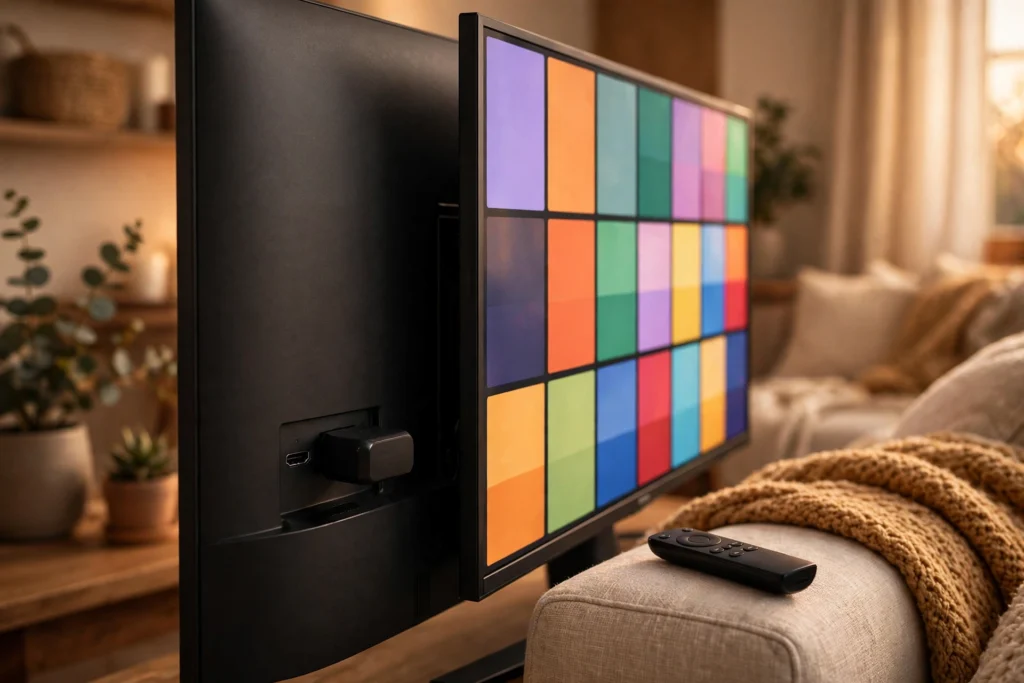
A streaming stick is a tiny computer that plugs into your TV’s HDMI port, connects to your Wi-Fi, and turns an ordinary television into a smart TV. It runs streaming apps, fetches video over the internet, and sends the picture and sound to your screen. The stick itself holds no films or shows — those come from the apps you sign into.
Key Takeaways
- A streaming stick is a pocket-sized media player that plugs into an HDMI port and adds streaming apps to any TV.
- It needs Wi-Fi and a power source, plus a separate subscription for most paid services.
- Sticks, set-top boxes, and built-in smart TV apps all do the same basic job — the stick is the cheapest way to add it to an older TV.
- A 4K stick only shows 4K picture on a 4K TV, and weak Wi-Fi is the most common cause of buffering.
What exactly is a streaming stick?
Think of it as a miniature computer built for one job: putting apps on your television. Inside the small case sits a processor, a Wi-Fi receiver, a little memory, and an HDMI output.
The best-known examples are the Roku Streaming Stick, the Amazon Fire TV Stick, and Google’s Chromecast with Google TV. Each runs its own home screen and offers the same familiar apps — Netflix, YouTube, Disney+, Prime Video — but the menus, remotes, and voice assistants differ.
Size is the whole point. A stick is about as long as a thumb drive and hides behind the TV, so nothing new appears on your TV stand. That makes it an easy fix for a perfectly good older television that never had apps built in.
How does a streaming stick work?
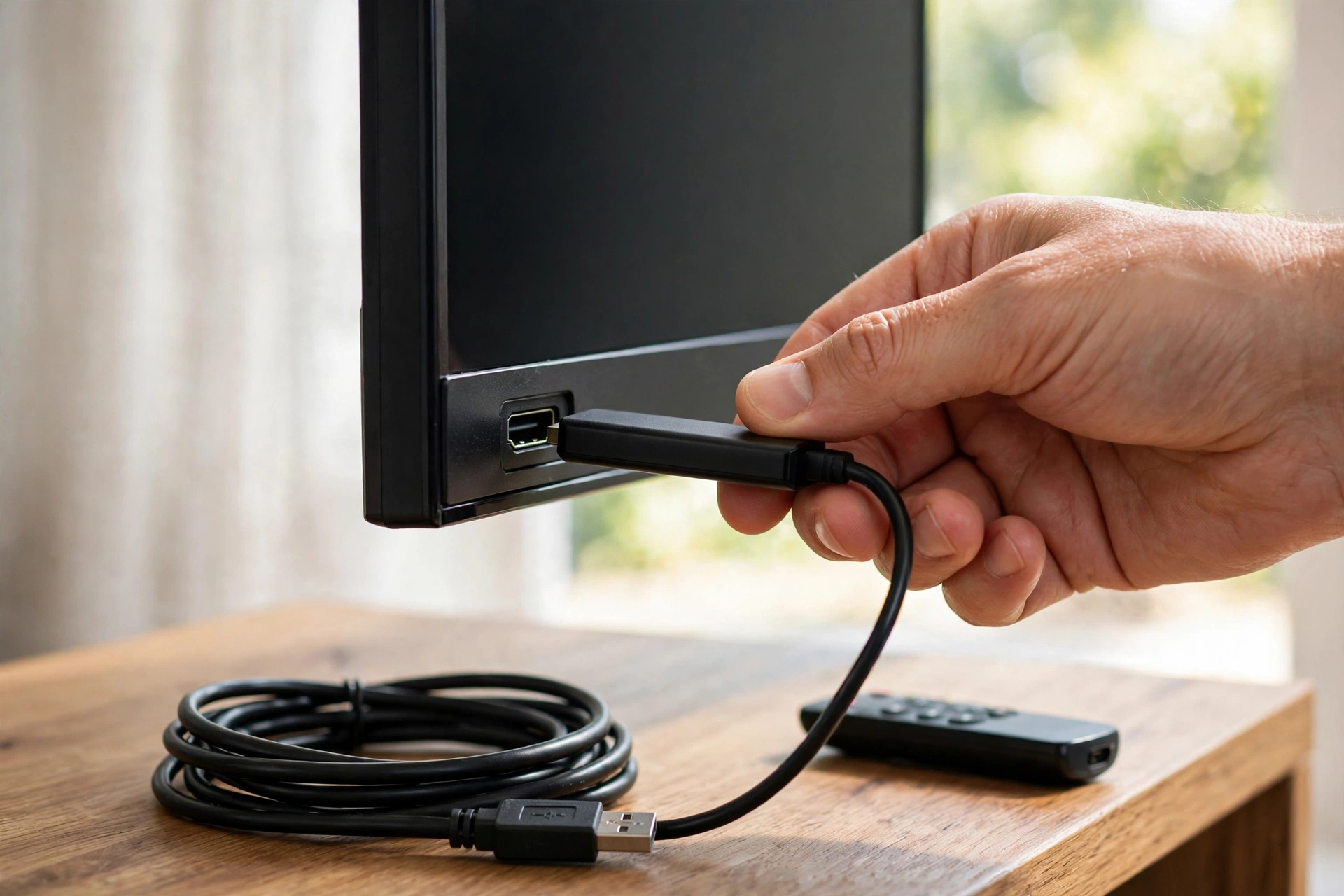
Setup takes four steps. First, plug the stick into a spare HDMI port and power it from a wall socket — the safer choice, since some TV USB ports do not supply enough power and the stick may restart mid-film. Second, switch the TV to that HDMI input and follow the on-screen setup: pick a language, connect to your home Wi-Fi, and sign into the platform account. Third, install the apps you want and sign into each streaming service separately. This is the step people forget to budget for: the stick is a one-off purchase, usually around $40 to $50, but Netflix or Disney+ still charge their own monthly fee. Fourth, press play — the service sends compressed video over the internet, the stick decodes it, and HDMI carries the finished picture and sound to your TV.
Streaming stick vs smart TV vs set-top box
All three do the same job — apps on the big screen — but they suit different rooms.
| Option | Best for | Price guide | Weak point |
|---|---|---|---|
| Streaming stick | Reviving an older TV | Around $40–$50 | Needs a free HDMI port and power |
| Built-in smart TV apps | A new TV purchase | Included in the TV | Apps slow down as the TV ages |
| Set-top box | A main living-room TV | Around $100–$200 | Bigger, pricier, needs a shelf |
The stick wins on value and portability: unplug it from the bedroom TV, take it to a holiday cottage, and plug it into any TV there. A built-in smart TV cannot travel, and a set-top box is overkill for a spare room. The trade-off is speed — a stick’s small body leaves little room for cooling, so its menus can feel slower than a good set-top box. For most living rooms, that is a fair swap for the price.
What do you need before you buy one?
Three things. First, a TV with a free HDMI port — nearly every flat-screen TV from the last fifteen years has one, and a cheap HDMI switch helps if every port is taken. Second, solid Wi-Fi where the TV sits: a stick two walls from the router may stutter. Our guide to how Wi-Fi works explains what affects the signal. Third, a power socket nearby, since most sticks come with a wall adapter.
Which streaming stick should you choose?
Start with the remote and the voice assistant, not the spec sheet — you will hold the remote every evening. Roku’s remote is famously simple. Amazon’s Fire TV Stick pairs with Alexa, which suits homes already using Echo speakers. Google’s stick leans on Google Assistant and works neatly with Android phones.
Next, match the resolution to your TV: a standard HD stick is fine for an older 1080p television, while a 4K stick only earns its extra cost on a 4K TV. Finally, check that your two or three must-have apps are available on the platform — all three carry the big names, but smaller services are not always on every one.
A worked example: a 2012 television in a spare bedroom, still with a good picture but no apps at all. A $40 Fire TV Stick, a free HDMI port, and the house Wi-Fi turn it into a fully working smart TV in about fifteen minutes. A new television would cost ten times as much for the same evening’s viewing.
Are there any downsides?
Yes. The stick is another gadget to keep updated: platforms push software updates that can change the home screen overnight, and older sticks eventually stop getting them, which is when the menus start to feel slow. Privacy is the other trade-off — a streaming stick knows what you watch, and its platform may use that to show adverts on the home screen. You can limit much of this in the privacy settings. And a small remote is easy to lose down the side of a sofa, so install the platform’s free phone remote app on setup day.
Frequently Asked Questions
Do I need a smart TV to use a streaming stick?
No — that is the point. Any TV with an HDMI port works, smart or not. The stick supplies the apps, the Wi-Fi connection, and the home screen.
Does a streaming stick need Wi-Fi?
Yes. The stick fetches every show over the internet, so it needs a Wi-Fi connection, and a strong signal matters more than the stick’s price.
Is a streaming stick free after you buy it?
The stick itself is a one-off purchase, and many apps — YouTube, free news, and ad-supported channels — cost nothing. Paid services such as Netflix or Disney+ still charge their usual monthly subscription on top.
Can I take a streaming stick on holiday?
Yes, and it is one of its best tricks. Unplug it, pack it with its power adapter, and plug it into the TV where you are staying. It will ask for the local Wi-Fi password, then your apps and logins are exactly as you left them.
Why does my streaming stick keep buffering?
Buffering almost always points at the Wi-Fi, not the stick. Move the router closer, or try the 5 GHz network if your router offers one. Bluetooth headphones can also add a little delay, so wired sound is worth trying if picture and sound drift apart. A portable projector is worth a look too if you want the same apps on a much bigger picture without buying a bigger TV.
Conclusion
A streaming stick is the simplest upgrade an old television can get: a small device, a free HDMI port, and your Wi-Fi turn a plain screen into a smart TV for around $40. Pick the platform whose remote and voice assistant you like, match the resolution to your TV, and check your must-have apps are available before you buy.
Further reading: Wikipedia’s overview of digital media players and Roku’s streaming stick range.