
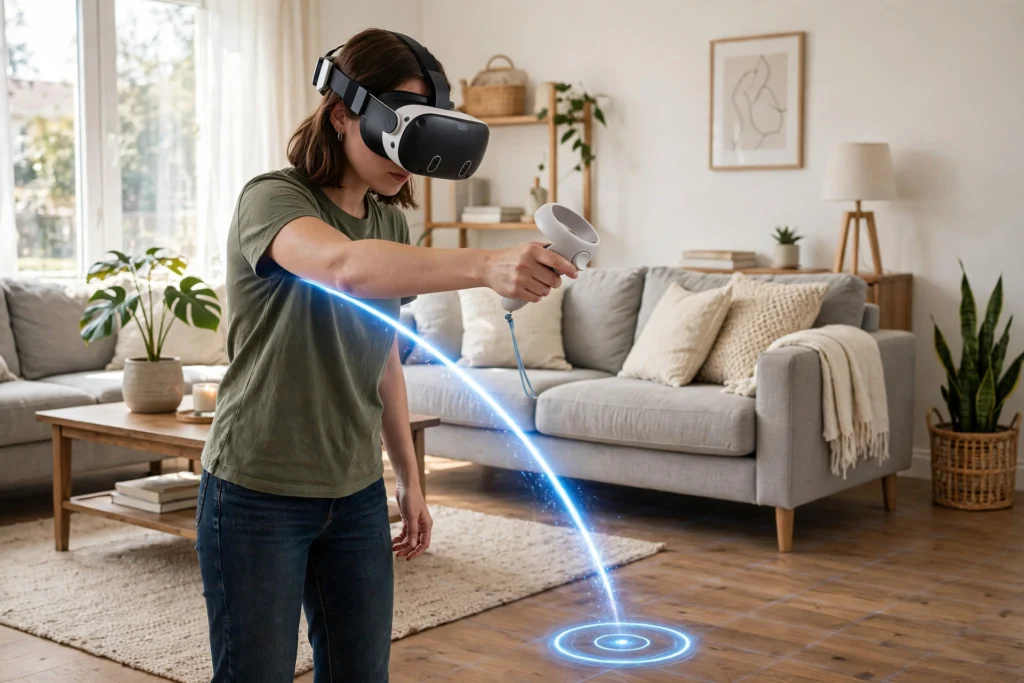
VR locomotion is how you move through a virtual world when your real room is much smaller than the place you are visiting. You can walk a few steps, point and teleport, or glide with a thumbstick, and the headset turns those inputs into movement in the scene.
Key Takeaways
- VR locomotion bridges the gap between a small physical room and a large virtual world.
- Teleporting is usually the most comfortable option for new users.
- Smooth movement feels more natural but can cause discomfort for some people.
- Room-scale walking is the most realistic option, but it is limited by your available space.
- The best setup is the one you can use comfortably for a full session, not the most advanced one.
What is VR locomotion, exactly?
In everyday life, moving is simple: you walk, and your body and eyes agree about what is happening. In VR, that agreement can break. A virtual castle corridor might be fifty metres long, while your living room is only a few metres wide. Locomotion is the system that solves that mismatch.
It takes an input — a step, a button press, a thumbstick push, or a hand gesture — and translates it into motion for your virtual viewpoint. Good locomotion also tries to keep that motion comfortable. That is why most headsets and apps offer more than one method, and why the settings menu matters just as much as the headset itself. If you have not yet explored how a headset tracks you, our guide to how VR headsets work is a useful starting point.
How does teleporting work?
Teleporting is the classic beginner-friendly method. You hold a button, aim a curved pointer at the floor, and release to jump instantly to that spot. Some apps let you choose which way you will face when you arrive, which helps you avoid landing with your back to something important.
Why does it feel easier for many people? Because there is no long, gliding view of the world moving past you. Your eyes do not get a steady stream of motion while your body stays still, so the mismatch that can cause queasiness is much smaller. The trade-off is that quick jumps can feel less continuous. You might lose track of where you came from, especially in a busy scene, so take a second to look around after each jump.
What is smooth movement, and when does it feel best?
Smooth movement, sometimes called slide or joystick movement, works more like a video game. Push the thumbstick forward and your viewpoint glides forward; push it sideways and you strafe. It feels natural if you already play games, and it makes exploring large worlds much faster than hopping from spot to spot.
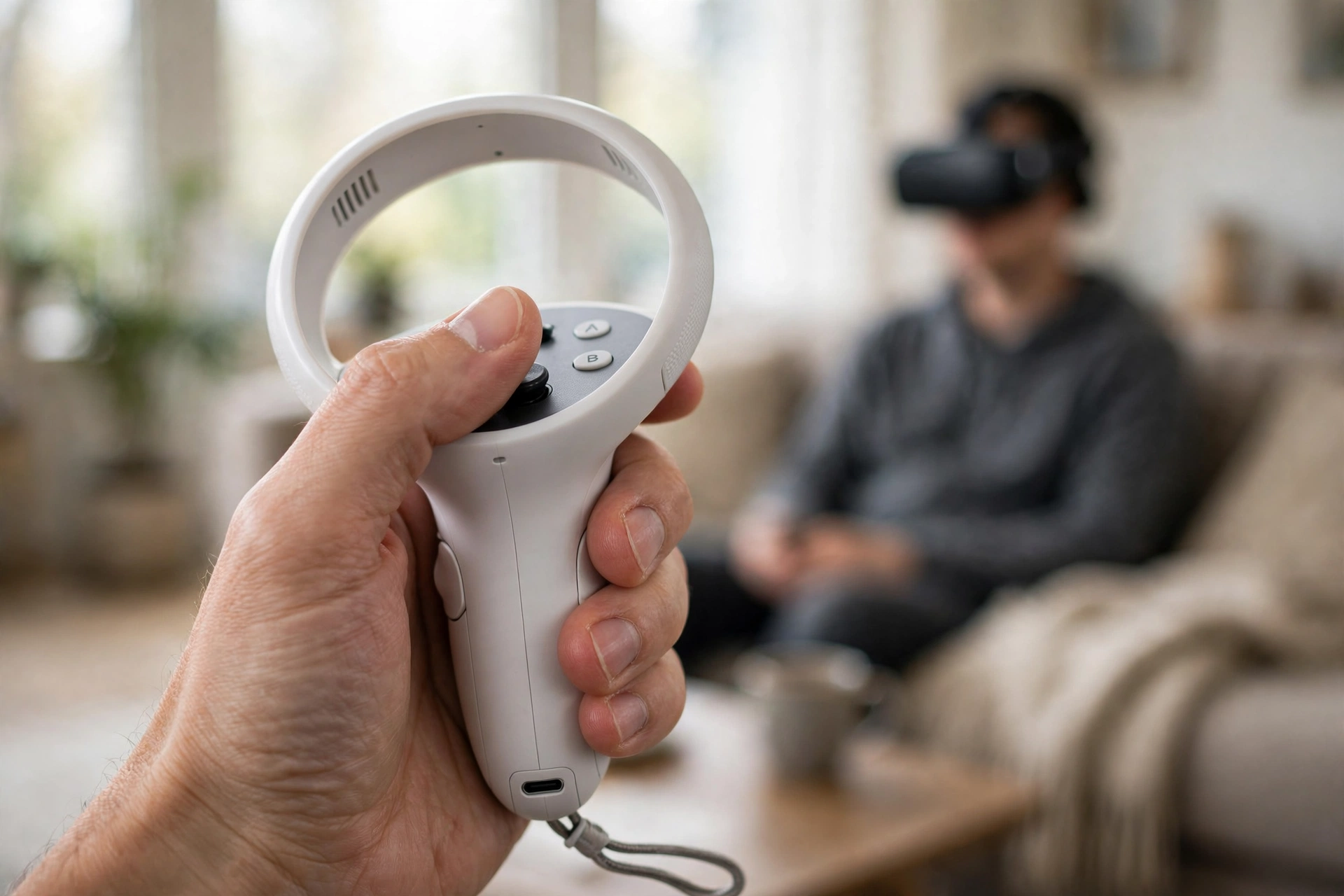
It can also be the method most likely to feel uncomfortable at first. Your eyes see movement, but your inner ear says you are standing still. If that bothers you, start with short sessions, slow the movement speed if the app allows it, and stop as soon as you feel warm, dizzy, or slightly off. Comfort usually improves with short, regular sessions, but pushing through discomfort rarely helps. For more on the controls themselves, see our guide to how VR controllers work.
How does room-scale walking work?
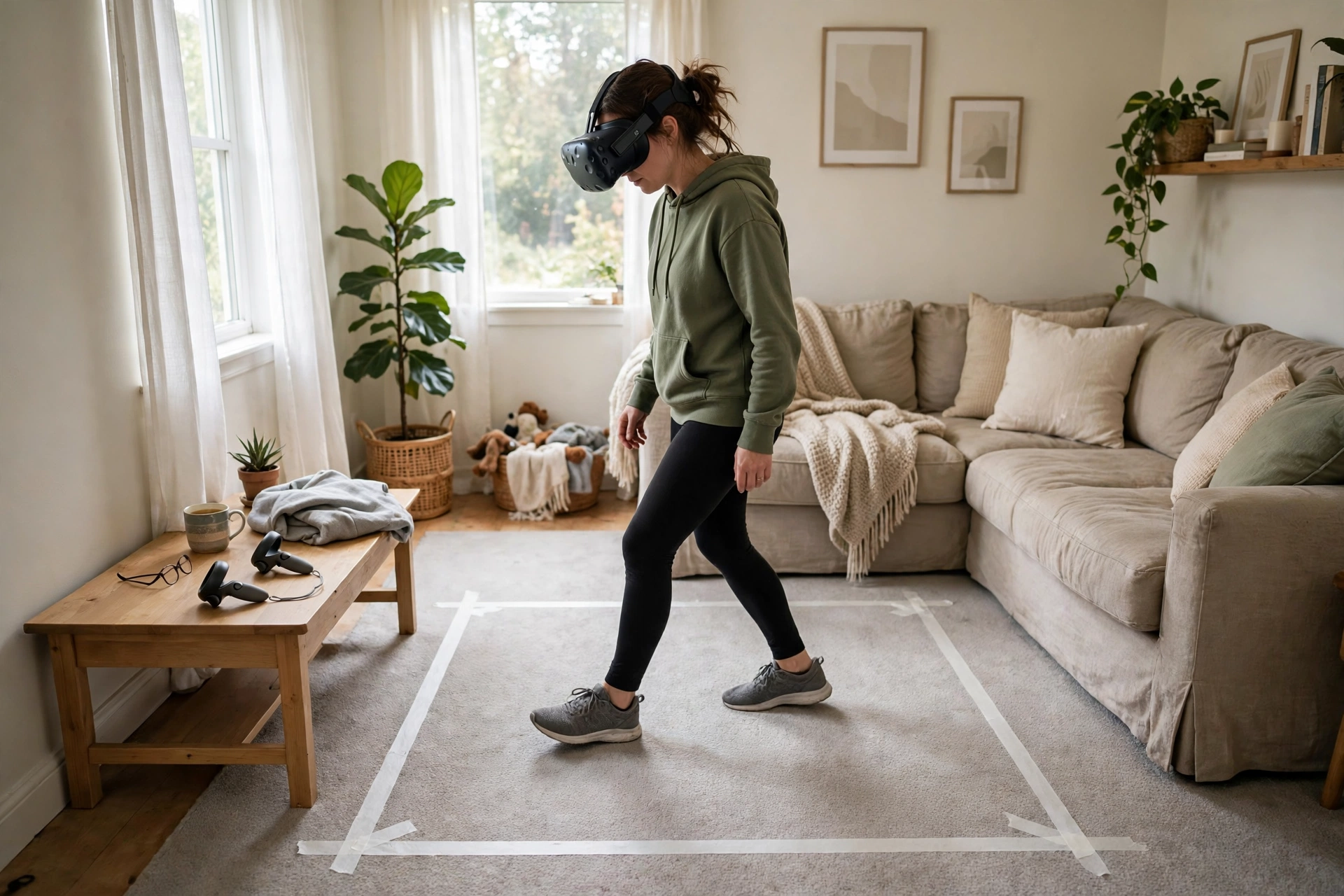
Room-scale walking is the closest thing to real walking in VR. The headset tracks your head, and when you take a real step, your virtual viewpoint moves by the same amount. It feels convincing because your body and your eyes agree again.
The catch is space. You need a clear, safe area, and the system needs to know where its edges are. That is where VR room mapping comes in: the headset maps your room and shows a boundary when you get close to a wall, a table, or another obstacle. Clear the floor, move fragile items out of reach, and keep pets and other people in mind. Room-scale is wonderful for a small scene, but for a long virtual journey you will still need teleporting or smooth movement to cover the distance.
How do you turn without getting dizzy?
Turning is a smaller choice with a big effect on comfort. Snap turning rotates your view in fixed steps, often 30, 45, or 90 degrees, with a quick jump between each step. Smooth turning rotates the view continuously, like turning your head in real life.
Many people find snap turning easier at first, for the same reason teleporting helps: it removes the long, sweeping motion. Others prefer smooth turning once they are used to VR, because it feels less jumpy. Some people simply turn their whole body, which is the most natural option when you have the room to do it. Try each setting for a few minutes in a calm app before you decide, and remember that the setting is usually per app, so you may need to set it more than once.
Why can movement feel uncomfortable?
Discomfort in VR is often about mixed signals. Your eyes report motion, your balance system reports stillness, and your brain has to sort out the contradiction. Fast acceleration, sudden turns, and movement that does not match your expectations can all make that contradiction worse.
This is not a sign that VR is not for you. It is a sign to change the settings, slow down, or take a break. A fan blowing gently, a seated position, and a calm scene can all help some people, but they are not cures, and no setting works for everyone. If you often feel unwell in VR, keep sessions short, stick with teleporting and snap turning, and read our guide to how VR motion sickness happens before trying faster movement styles.
How to choose settings that suit you
Start with comfort, then add freedom. A practical order is: teleporting first, snap turning second, and smooth movement only when the first two feel easy. Keep movement speed low at first, and turn on comfort aids such as a vignette, which darkens the edges of the view during movement, if the app offers one.
Also check how movement is mapped. Some apps move you in the direction your head faces, while others use the direction your hand or controller points. Neither is wrong, but switching between them without realising it can feel strange. Pick one, learn it in a quiet scene, and only then test the other. Finally, save your preferences when you find a combination that works, so you do not have to rediscover it every time you open a new app.
Frequently Asked Questions
Is teleporting better than smooth movement?
Neither is better for everyone. Teleporting is usually more comfortable for beginners, while smooth movement feels more continuous and game-like. Try teleporting first, then test smooth movement in short sessions.
Can I walk around a whole virtual world on foot?
Only if the virtual world is about the size of your real room. For larger worlds, you will need teleporting, smooth movement, or another artificial method to cover the extra distance.
Why do I feel dizzy when I move in VR?
It is often a mismatch between what your eyes see and what your body feels. Slowing down, using teleporting and snap turning, and taking breaks can help, but stop if discomfort grows.
Do all VR apps use the same movement controls?
No. Movement settings are usually set inside each app, so controls and comfort options can differ. Check the settings menu when you start a new app.
What is the best locomotion setting for a first session?
Start with teleporting and snap turning, at a low movement speed if the app offers that control. Once that feels easy, you can experiment with smoother options in short bursts.
Conclusion
VR locomotion is not one trick; it is a set of choices for moving through a world that is bigger than your room. Teleporting keeps things comfortable, smooth movement keeps things flowing, and room-scale walking keeps things realistic. The practical next step is simple: open a calm VR app, set teleporting and snap turning, clear your play area, and spend ten minutes testing how each option feels. That short test will tell you more than any settings guide can.
For further reading: Meta Horizon OS Developers — Locomotion user preferences and Meta Horizon OS Developers — Locomotion Interactions.