

A USB flash drive stores your files as electrical charges trapped inside tiny memory cells, so it keeps them even when it is unplugged and has no battery. Plug it in, and your computer powers it through the USB port, reads those charges, and turns them back into the documents, photos, and videos you saved.
Key Takeaways
- A flash drive has no moving parts. It stores data in NAND flash memory chips, managed by a small controller.
- It needs no battery to remember files, because the charges in its memory cells stay put without power.
- Speed depends on the USB version, the drive’s controller, and the size and number of files being copied.
- The capacity printed on the box is a little more than the space you can actually use, because some space goes to formatting and the drive’s own workings.
- Ejecting safely, keeping a second copy, and not trusting one tiny drive with your only copy are the habits that matter most.
What is inside a USB flash drive?
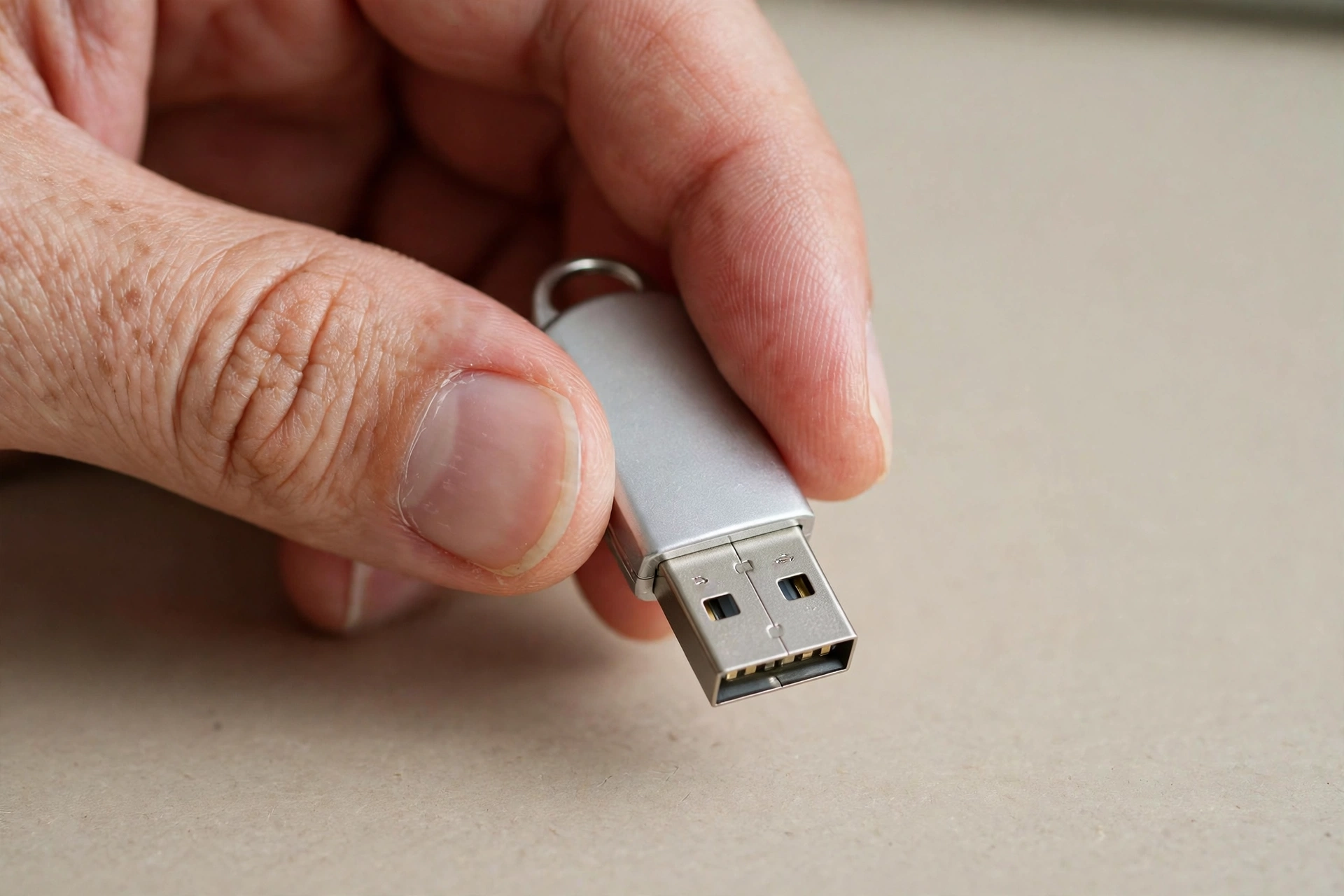
Pop one open — not that you should, since you would probably break it — and you would find a small circuit board with just a few main parts. There is the USB plug itself, which carries both power and data. There is a controller chip, a tiny brain that talks to your computer, finds free space, and keeps track of where each file lives. And there is one or more NAND flash memory chips, where the actual data sits. Some drives add a small crystal oscillator to keep timing steady, and most have a light that blinks while files are being read or written. That blinking light is worth watching: if it is busy, the drive is busy, and pulling it out mid-blink is asking for trouble.
Compared with the old floppy disks and CDs many of us grew up with, a flash drive is a different kind of beast entirely. There is nothing spinning, nothing to scratch in the usual sense, and nothing that needs a separate reader. It draws its power from the port it is plugged into, which is one reason it works on almost any computer, TV, car stereo, or printer that has a USB socket. If you have ever moved a presentation from a laptop to a classroom computer, or carried photos home from a print shop, you have probably relied on exactly this simplicity. It is also why flash drives pair so naturally with other everyday tech: a file can travel by Wi-Fi or Bluetooth when a connection is handy, but a flash drive works when there is no network at all, much like a power bank keeps a phone going when there is no wall socket nearby.
How does it store files without power?
This is the part that surprises most people. Ordinary computer memory, the RAM your laptop uses while it runs, forgets everything the moment power goes away. Flash memory does not. Each memory cell holds a tiny electrical charge, trapped in a structure that keeps hold of it even with no current flowing. Think of it like a light switch that stays where you left it after you walk out of the room. Your computer reads a file by checking which cells are charged and which are not, and it writes a file by pushing charges into cells or clearing them out again.
That sounds neat, and it is, but it comes with a wrinkle. Flash memory cannot simply overwrite a single bit the way a notebook lets you rub out one word. It erases data in blocks, then writes fresh data into the cleared space. That is where the controller earns its keep. It spreads writes around the chip so no single block wears out far sooner than the rest, a trick called wear levelling. It also keeps a map of which blocks are good, which are full, and which are ready to be reused. When you delete a file, by the way, the drive usually just marks that space as available rather than scrubbing it clean on the spot, which is one reason deleted files can sometimes be recovered with special software. If you are getting rid of a drive that held sensitive material, deleting files is not the same as wiping it properly.
Why do some flash drives feel so much faster than others?
If you have ever watched a progress bar crawl on one drive and fly on another, you have met the three things that decide speed: the USB version, the drive’s controller and memory, and what you are copying. An older USB 2.0 port tops out far below a modern USB 3 port, and a drive built for the older standard cannot go faster than the port allows, no matter what the packaging hints. But even two drives plugged into the same fast port can differ a lot. Cheaper drives often use slower memory and a simpler controller, so they shine on paper and crawl on a folder full of small files.
That last point trips people up. Copying one big video file is usually quick, because the drive can write in long, steady stretches. Copying thousands of small photos or documents is slower, because the drive and computer must handle each file separately, with a little overhead every time. So a drive that claims a big headline speed may still feel sluggish in everyday use. The honest test is your own workload: if you mostly move photos and documents, try the drive with a real folder before you judge it. And keep expectations grounded — a pocket-sized drive is built for convenience, not to match a desktop solid-state drive, and no drive will make a slow, crowded computer feel fast.
What about capacity, and why is some space missing?
A drive labelled 64 GB will show a bit less usable space on your computer, and that is normal, not a fault. Part of the gap comes from the way manufacturers and computers count a gigabyte differently, and part comes from the formatting and housekeeping space the drive needs to work at all. The controller reserves room for its mapping tables and for replacing worn-out blocks over time, so the drive can keep working as it ages. None of this means you were short-charged; it is the cost of a drive that manages itself.
Choosing a size is mostly about being honest with yourself. For documents and the odd presentation, a small drive is plenty. For photos and video, go bigger than you think you need, because video fills space fast and a nearly full drive tends to slow down. A good rule of thumb is to leave at least a tenth of the drive free. It also helps to pick a connector that matches the devices you actually use: the classic rectangular USB-A plug fits most older computers, while newer laptops and phones often need USB-C, and some drives carry both. Buying the wrong plug and then hunting for an adapter is a small annoyance that is easy to avoid by checking your ports first.
How do you use a flash drive safely?
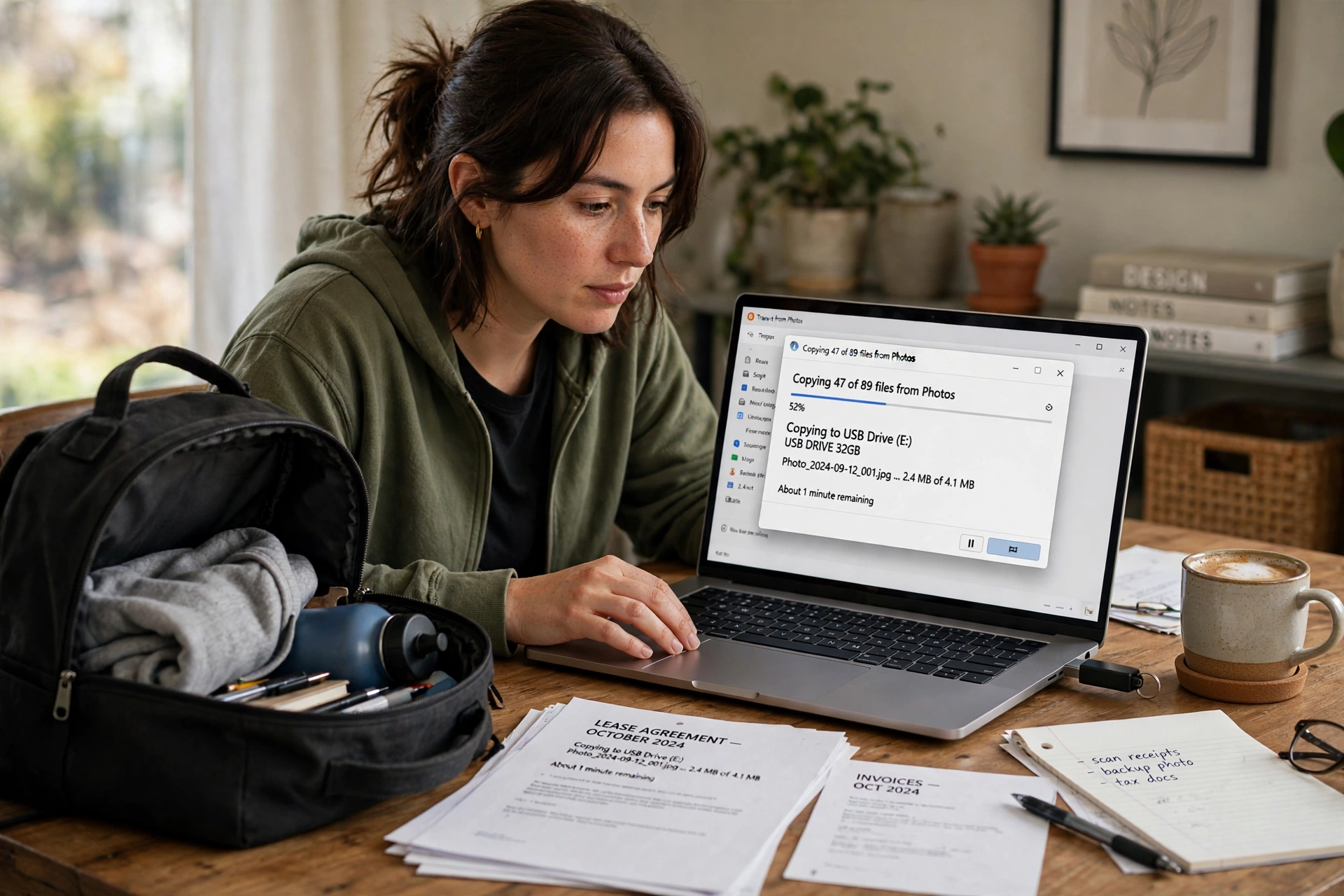
Most flash drive disasters are not dramatic. They are the quiet kind: a drive pulled out mid-copy, a single copy of a wedding album, a drive left in a jacket pocket through the wash. A few habits cover nearly all of it. First, eject before you remove. Your computer’s “safely remove” option makes sure every write has actually finished, not just been queued up. Second, keep a second copy of anything you would hate to lose, somewhere else entirely — another drive, a computer, or cloud storage. A flash drive is a carrier, not an archive. Third, be careful with drives you find or are handed by strangers. A free drive can carry malware, so if you do not know where it came from, do not plug it into a computer you care about without a virus scan, and ideally not at all.
Heat, water, and rough handling deserve a mention too. Flash drives are tougher than spinning disks, but they are not indestructible. Leaving one on a car dashboard in summer, bending it while it sticks out of a laptop in a bag, or snapping the connector are all common ways to kill one. A cap or retractable design helps, and so does a simple habit: unplug it before you pack the laptop away. If a drive starts behaving oddly — files that will not open, frequent errors, or a computer that stops recognising it — copy what you can off it straight away and retire it. Chasing a failing drive for one more use is how a recoverable problem becomes a lost one.
FAQs
Can a USB flash drive lose data if it is left unplugged for years?
It can, slowly. The charges in flash cells leak over very long periods, and a drive left untouched for many years is not a reliable archive. For anything precious, refresh the copy every few years and keep a second copy elsewhere.
Is it safe to leave a flash drive plugged in all the time?
It usually works, but it is not ideal. A drive left in a laptop is exposed to every bump, power cut, and accidental knock, and it can wear faster if software keeps writing to it. Plug it in when you need it, eject it when you are done.
Why does my drive get slower as it fills up?
As free blocks run low, the controller has more juggling to do: finding space, clearing blocks, and spreading writes around. Leaving some free space and avoiding filling the drive to the brim usually keeps it noticeably happier.
Can I use a flash drive with a phone or tablet?
Often, yes, if the device supports USB storage and you have the right connector or adapter. Many Android phones accept USB-C drives directly, while iPhones and iPads vary by model, so check your device’s specs before buying.
Should I encrypt a flash drive that holds personal files?
If it holds anything private and it ever leaves your home, encryption is a sensible step. Many operating systems include built-in encryption tools, and some drives offer it themselves. Just do not forget the password — an encrypted drive with a lost password is as good as a blank one.
Conclusion
A USB flash drive is a small package with a clever trick inside: memory that remembers without power, managed by a controller that hides all the messy details from you. Pick a size and connector that fit your devices, leave a little breathing room, eject before you unplug, and never let one drive be the only home of something important. Do that, and the humble thumb drive will keep doing its quiet job for years. As a practical next step, check one drive you already own today: eject it properly, make a second copy of anything on it that matters, and note whether its connector still matches the computer you use most.