
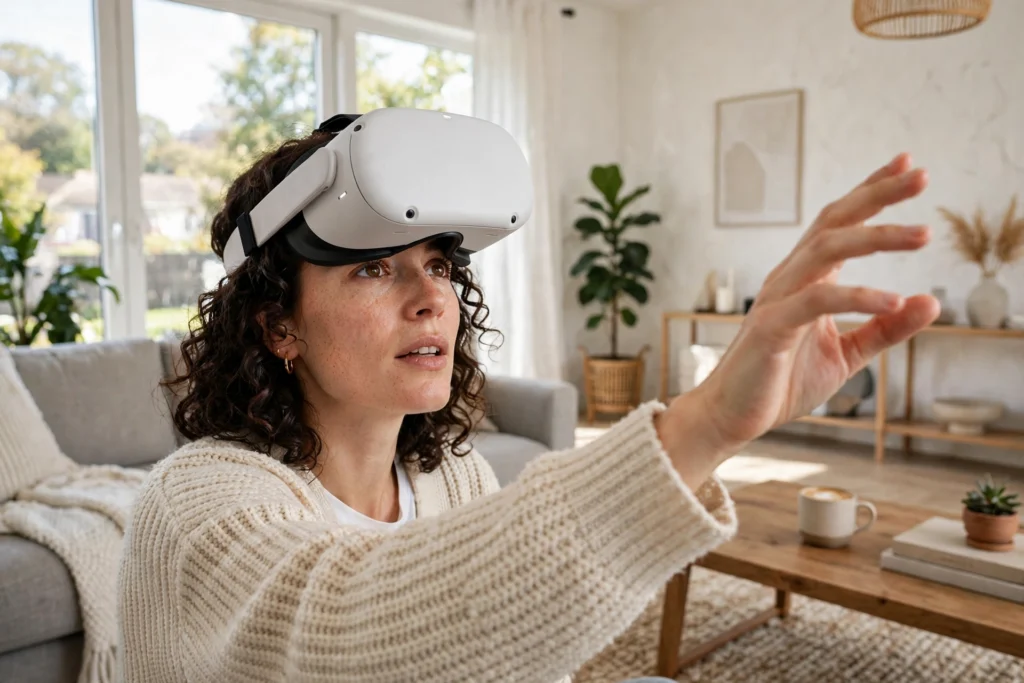
VR hand tracking lets you use a headset without picking up controllers. Cameras on the front of the headset watch your hands, software works out where each finger is, and your virtual hands copy what your real hands do. Pinch to click, reach out to grab, and swipe to scroll — no buttons needed.
Key Takeaways
- VR hand tracking uses the headset’s own cameras to follow your fingers, so no controllers or gloves are required.
- A pinch between thumb and finger is the basic click, while grabbing, dragging, and direct tapping cover most other actions.
- It works best in good light, with your hands in front of you and in view of the cameras.
- Fast, precise, or force-feedback tasks still suit controllers better than bare hands.
- Support varies by app, so check whether an app offers hand tracking before you put the controllers down.
How does the headset see your hands?
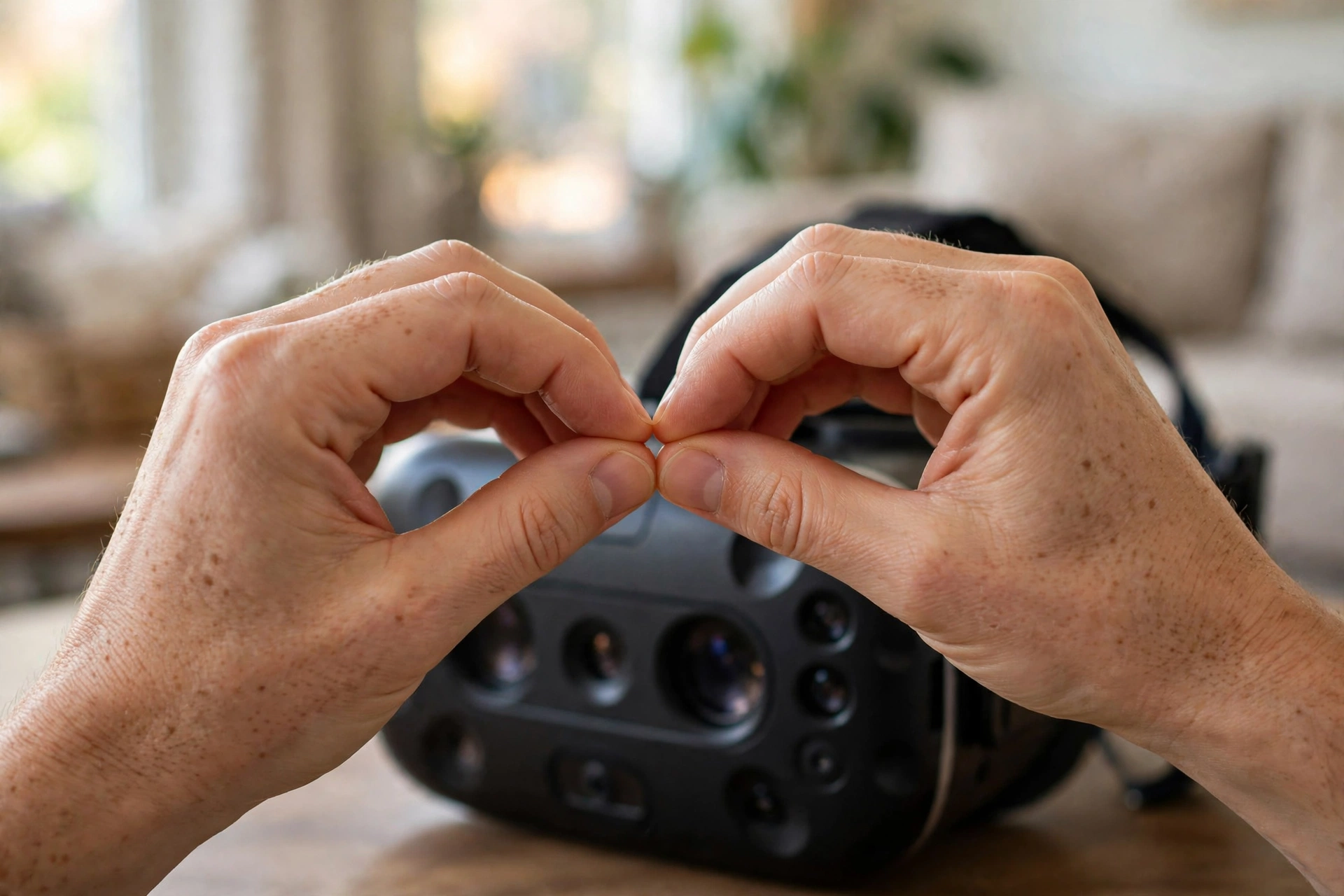
Most modern standalone headsets already have cameras pointing outward to track the room and the headset’s own position. Hand tracking reuses those cameras. They capture your hands many times per second, and software looks for the shape of a hand: palm, fingers, knuckles, and fingertips. From that shape it builds a simple skeleton model of each hand, then updates that model as you move.
That model is what the virtual world actually uses. When you open your hand, the virtual hand opens. When you curl a finger, the virtual finger curls. The headset does not need to know what you are thinking — it only needs a fast, steady estimate of where your joints are. If you have used a headset before, our guide to how VR headsets work explains the screens, lenses, and tracking that hand tracking sits on top of.
Lighting matters more than people expect. The cameras need to see clear edges and contrast, so a dim room, harsh backlight, or hands against a very busy background can all make tracking wobble. A well-lit room with your hands held out in front of you, roughly at chest height, gives the cameras their easiest job.
What gestures do you actually use?
The gesture set is deliberately small, because a handful of reliable gestures beats a long list of flaky ones. The core gesture is point and pinch: point your hand at what you want, wait for a cursor to appear, then bring thumb and finger together to select it. It feels odd for about a minute, then it starts to feel like tapping a touchscreen in mid-air.
Pinch and drag handles scrolling and moving things. Stay pinched, move your hand up, down, or sideways, and release when you are done. A palm pinch — looking at your palm and holding thumb and finger together — usually brings up the main menu. Some headsets also support direct touch, where you reach out and tap a floating panel or keyboard key with a fingertip, much like pressing a button that is not really there.
Grabbing is the most satisfying gesture and the least precise. Close your hand around a virtual object and it should follow your hand until you let go. That works well for picking up a ball or moving a window. It works less well for threading a needle, turning a tiny dial, or anything that needs a firm grip, because there is nothing pushing back against your fingers.
What can you actually do with your hands?
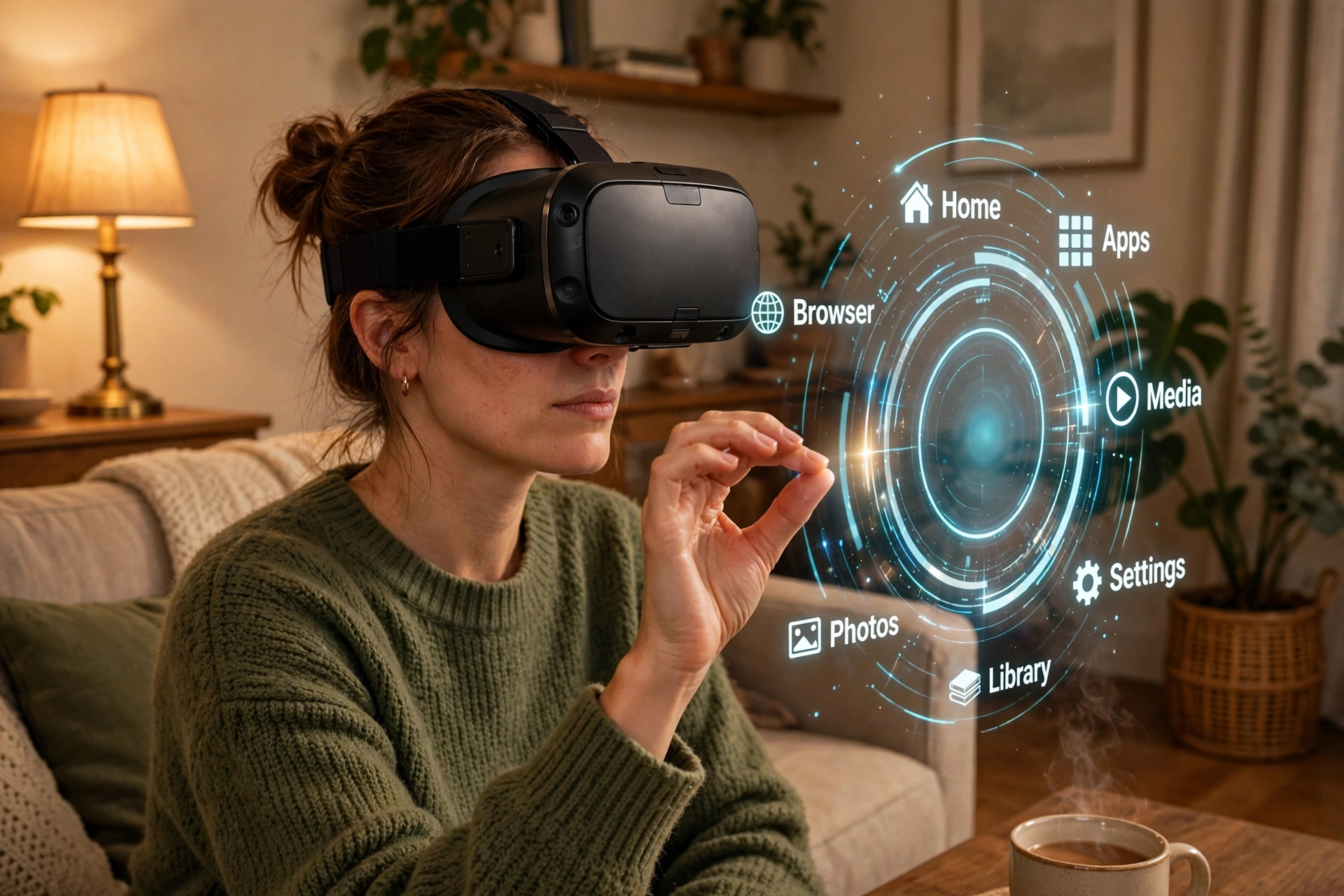
For everyday headset use, quite a lot. You can browse menus, open apps, watch a film, scroll through photos, and type short messages on a virtual keyboard — all without hunting for controllers that have slid down the side of the sofa. That is the real appeal: hand tracking makes a headset feel more like picking up a phone for a quick task and less like setting up a games console.
In social and creative apps, hands add expression. Waving, pointing, and thumbs-up gestures read naturally to other people in the room, and drawing or shaping objects with your fingers can feel more direct than using a stick and buttons. Design and training apps use the same idea: reaching for a part, turning it over, and placing it somewhere else is easier to learn when the movement matches the real-world action.
There are limits, and they are worth knowing before you commit to a hands-only session. As our guide to how VR controllers work explains, controllers add buttons, triggers, and vibration that bare hands cannot match. A fast game, a long typing session, or a task that needs a steady aim will usually feel better with controllers in hand. Hand tracking is a complement to controllers, not a full replacement for them.
Why does hand tracking sometimes lose your hands?
Usually for one of three simple reasons: your hands left the cameras’ view, the light changed, or your hands overlapped each other. Hands behind your back, below a desk, or pressed together in a tight grip are hard for cameras to read, because the cameras can only track what they can see. The same goes for very fast movements, which blur between frames and make the hand model guess.
Fixes are equally simple. Bring your hands back in front of you, spread your fingers for a moment so the cameras can re-find them, and check the lighting. If tracking keeps dropping in one spot, move away from a bright window or switch on a lamp. And remember that room tracking and hand tracking work together: room-scale tracking, covered in our guide to how VR room mapping works, handles where your body is in the room, while hand tracking handles what your fingers are doing inside the scene.
One more practical point: hand tracking needs the app to support it. A headset may offer the feature system-wide, but an individual game or app can still require controllers. If an app shows a message saying controllers are required, that is not a fault with your headset — it just means that app was built around buttons and triggers.
How do you set hand tracking up well?
Start in settings, not in an app. On headsets that follow Meta’s approach, you open the main menu, go to Settings, then Tracking, and switch hand and body tracking on. Some headsets also offer an automatic switch, so putting the controllers down switches to hands, and picking them up switches back. Meta’s hand and body tracking help page walks through the same steps in plain terms.
Then try the basics in a menu app before jumping into a game. Point, pinch to select, pinch and drag to scroll, and try a palm pinch for the main menu. Spend a few minutes getting used to the pinch distance — a small, deliberate pinch works better than a big theatrical one. Keep your hands relaxed and in view, and avoid crossing them over each other while you learn.
If you wear long sleeves, roll them back a little so the cameras get a clean view of your wrists and hands. Rings and watches rarely cause problems, but a very reflective watch face in bright light can occasionally confuse a camera. And take breaks: holding your arms out for a long time is tiring, which is another reason controllers still win for long sessions.
FAQs
Do all VR headsets support hand tracking?
No. It is common on newer standalone headsets, but not universal, and older or budget models may not offer it at all. Check the specifications for your exact headset, and check per app too, since support can differ between apps on the same headset.
Can hand tracking replace controllers completely?
Not yet, for most people. Hands are great for menus, browsing, and light interaction, but controllers remain better for fast games, precise aiming, long typing, and anything that needs vibration or resistance. Many people switch between the two during a session.
Why does my pinch sometimes not register?
The usual causes are a pinch that is too quick or too far from the cameras, hands overlapping, or poor lighting. Try a slower, clearer pinch with your hand in front of you, spread your fingers briefly to let the cameras re-find your hand, and improve the room lighting.
Does hand tracking record video of my hands?
Headsets that follow Meta’s approach process camera images on the device to estimate hand positions, rather than sending hand video to apps. Policies differ by maker and app, so read the privacy notice for your headset and check per-app permissions if you are unsure.
Is hand tracking tiring to use?
It can be, especially if you hold your arms out for a long time. Keep your hands closer to your body where the cameras can still see them, take regular breaks, and switch to controllers for longer sessions or tasks that need a lot of repeated gestures.
Conclusion
VR hand tracking turns your own hands into the controller: cameras watch your fingers, software builds a hand model, and pinches, grabs, and taps do the work that buttons used to do. It is not perfect — light, speed, and camera view all set limits — but for menus, browsing, and casual apps it makes a headset noticeably easier to pick up and use.
If you are trying it for the first time, start with the practical next step: switch hand tracking on in settings, open a menu app, and spend ten minutes pointing, pinching, and scrolling with no controllers in reach. That short test will tell you quickly where hands feel natural for you — and where you will still want to pick the controllers back up.