
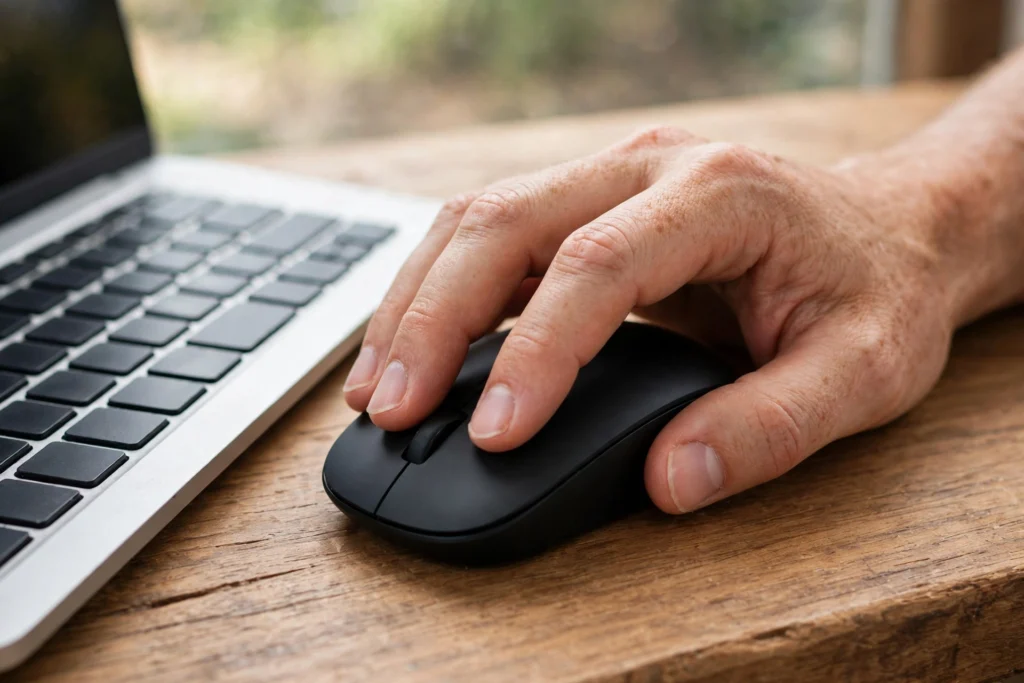
A computer mouse turns small hand movements into pointer movement on screen. Its sensor watches the surface below, its buttons turn presses into clicks, and its scroll wheel moves pages up and down. That simple job is why it still feels natural, even next to touchpads and touchscreens.
Key Takeaways
- Most modern mice use an optical or laser sensor that photographs the surface many times per second and compares the images to work out direction and distance.
- A click is a small switch closing under a button; the computer then decides whether it was a single click, a double-click, or a right-click from timing and context.
- The scroll wheel sends small steps that apps turn into scrolling, zooming, or switching tabs, depending on the app.
- Wireless mice send the same signals by radio or Bluetooth, so the connection changes how you pair and charge them, not how pointing itself works.
- Comfort matters as much as sensor specs: size, shape, weight, and button placement affect how your hand feels after a long day.
How does a mouse track movement?
Under a modern mouse, a tiny light shines on the desk or mouse pad, and a small sensor takes rapid pictures of that surface. Each picture looks slightly different because the texture has shifted. By comparing one picture with the next, the mouse works out how far, and in which direction, it has moved. It then sends that movement to the computer, which moves the pointer by a matching amount.
Older ball mice worked differently. A rubber ball rolled as you moved the mouse, turning two small rollers inside. Those rollers told the computer how far the mouse had gone left-right and up-down. Ball mice needed regular cleaning, because dust and fluff collected around the ball. Optical mice removed that moving part, which is one reason they became so common.
Sensitivity is often described in DPI, or dots per inch. A higher DPI means the pointer moves further for the same hand movement. That sounds better, but it isn’t always. A very high setting can make the pointer feel jumpy, especially on a large screen or when you’re trying to select small text. Most people are better off starting in the middle range and adjusting until slow, precise moves feel easy and fast moves don’t overshoot.
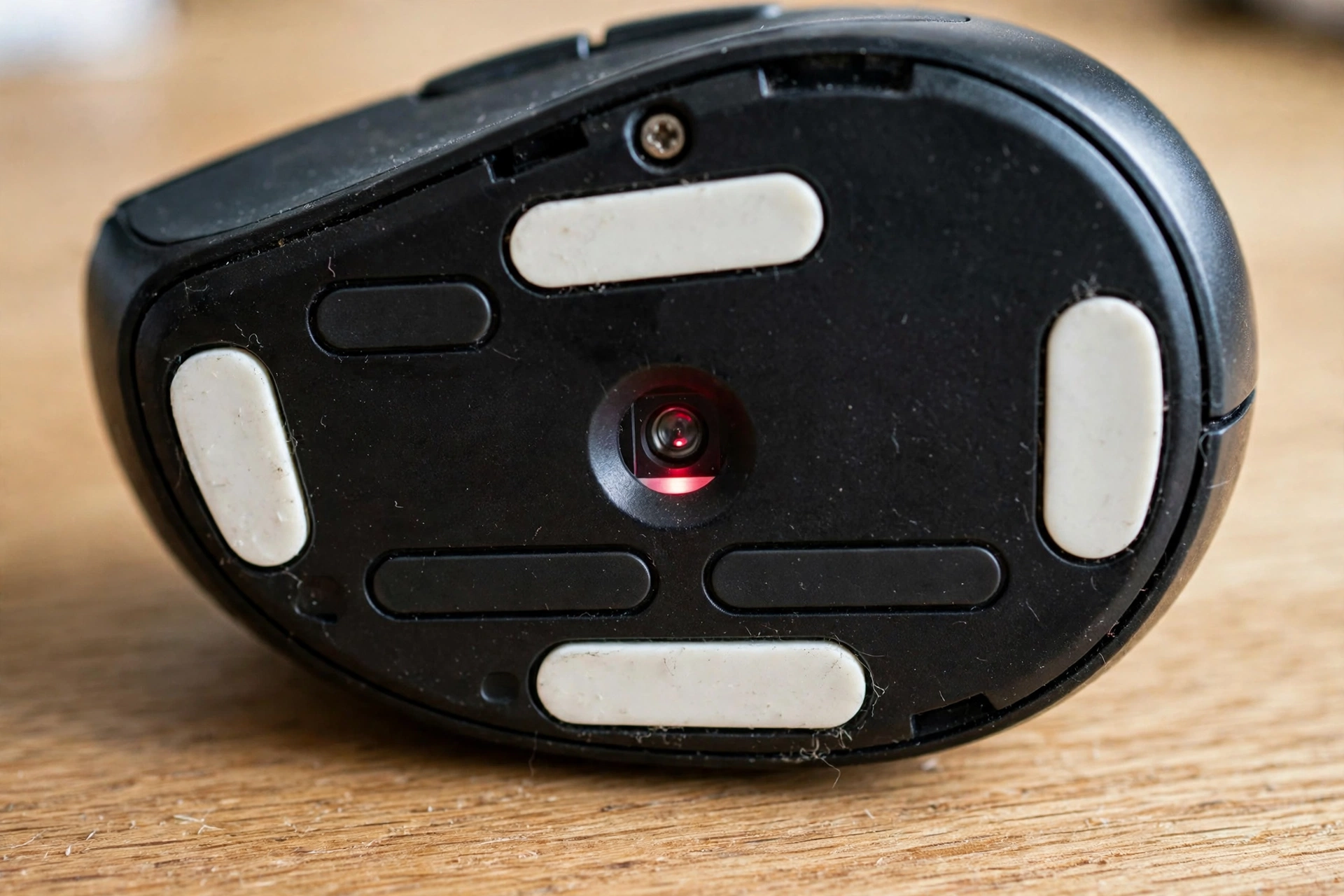
Surface matters too. A plain wooden desk, a mouse pad, or a sheet of paper usually works well because the sensor can see texture. Clear glass and very shiny surfaces are harder, because there is little for the sensor to track. If your pointer stutters, try a mouse pad before you blame the mouse itself — it’s a cheap fix that often solves the problem.
What happens when you click?
A mouse button is not just a piece of plastic. Under it sits a small switch. Press the button and the switch closes, sending a signal that says “button pressed.” Release it and another signal says “button released.” The computer and the app together interpret that pair of signals.
A single left-click usually selects something. Two quick clicks open a file or a word, depending on where you are. A right-click usually opens a menu with more options. The difference isn’t in the hardware — it’s in timing and in which button you pressed. That’s why a double-click that is too slow can turn into two separate single clicks, and why adjusting double-click speed in your system settings can make a mouse feel much more forgiving.
Middle-click, usually pressing the scroll wheel, is less well known but handy. In many browsers it opens a link in a new tab, and in some apps it can close a tab or paste text. Side buttons, when a mouse has them, are often set to go back and forward in a browser. You don’t have to use every button, but knowing they exist can save a surprising amount of back-and-forth.
How does the scroll wheel work?
The scroll wheel is a small wheel with notches. Turn it and it sends a series of small steps to the computer. Most apps turn those steps into vertical scrolling: one notch, a few lines down the page. Hold a modifier key while scrolling and many apps switch to horizontal scrolling or zooming instead.
Some wheels can tilt sideways for horizontal scrolling, and some can switch between notched scrolling and free-spinning scrolling. Notched scrolling gives you control, step by step, which suits reading and spreadsheets. Free-spinning scrolling lets you fly through a long document with one flick, which suits long web pages. Neither is right for everyone — it’s a feel thing, and it’s worth trying both if your mouse offers the choice.
Touch-sensitive strips and touch surfaces on some mice do the same job without a wheel, by sensing a finger sliding across them. The idea is the same: a small gesture becomes a scroll command. If you switch between a wheel mouse and a touch mouse, give yourself a day or two to adjust; your hand will learn the new gesture faster than you expect.
Wired or wireless: does it change how a mouse works?
The pointing, clicking, and scrolling work the same way. What changes is how those signals reach the computer. A wired mouse sends them down a cable, which also powers it. A wireless mouse usually uses a tiny USB receiver or Bluetooth. The receiver type uses its own radio link and often feels ready the moment you plug it in. Bluetooth mice pair through your computer’s Bluetooth settings, as explained in our guide to Bluetooth, and don’t need a receiver at all.
Wireless mice need power, either from a replaceable battery or a rechargeable one. A mouse that stops responding is often just flat, not broken — check the battery or charging cable first. Some wireless mice also have a power switch underneath, which is easy to knock off when you pick the mouse up. If your pointer freezes after a break, that switch is a good first check.
Latency, the tiny delay between moving your hand and seeing the pointer move, used to be a bigger worry with wireless mice. For everyday work, browsing, and most games, modern wireless mice are close enough that most people won’t notice. Competitive gamers and designers who need pixel-perfect control may still prefer a wired mouse or a high-end wireless model, but for most desks, convenience wins.
How did the mouse get here?
The mouse wasn’t always a desk staple. Early versions in the 1960s used wheels and later a rolling ball, and they were research tools before they were everyday products. As graphical interfaces spread — windows, icons, and menus you could point at — the mouse became the natural way to use them. You can read more about those early designs in the Computer History Museum’s account of the mouse.
The optical mouse, explained in detail on Wikipedia’s optical mouse page, replaced the ball with light and a sensor. That change made mice more reliable and less fussy about cleaning. Since then, the basic idea has stayed steady, while shapes, buttons, and wireless links have diversified to suit different hands and jobs.
What should you look for when choosing a mouse?
Start with your hand, not the spec sheet. A mouse that is too small forces your fingers to curl, and one that is too large makes you stretch to reach the buttons. If you can, try holding a mouse before you buy it, or check the return policy if you’re buying online. Palm grip, claw grip, and fingertip grip all suit different shapes, and there’s no single best shape for everyone.
Next, think about how you’ll use it. Office work and browsing need comfortable buttons and a smooth wheel. Photo editing and design benefit from a precise sensor and, sometimes, extra buttons you can customise. Travel calls for a compact, light mouse that slips into a bag and doesn’t need a cable. Gaming mice add high DPI settings and fast response, but those extras don’t help much if the shape hurts your wrist.
Battery life and charging matter for wireless models. A mouse that lasts weeks on a charge is less hassle than one that needs charging every few days. Also check whether it charges over a common cable you already own — a mouse with an unusual cable is annoying when that cable goes missing.
Finally, don’t overlook the surface you’ll use it on. A decent mouse pad gives the sensor something consistent to track, protects your desk, and can make the mouse glide more smoothly. It won’t fix a broken mouse, but it can make a good mouse feel better, much like a comfortable keyboard makes typing easier — see our guide to mechanical keyboards for the keyboard side of a comfortable setup.

Why does my mouse sometimes feel wrong?
If the pointer jumps, lags, or drifts, work through the simple causes first. Clean the sensor area gently with a dry cloth, try a different surface or mouse pad, and check the battery if it’s wireless. Restarting the computer can also clear a stuck driver or setting. If the problem follows the mouse to another computer, the mouse itself is the likely cause; if it stays with one computer, the settings or port may be at fault.
Double-clicks that don’t register, or clicks that feel mushy, can mean a worn switch. That’s common after years of heavy use. A new mouse is usually cheaper and easier than a repair, unless it’s a high-end model with replaceable switches.
Wrist discomfort is a different kind of problem, and it’s worth taking seriously. Take regular breaks, keep your wrist fairly straight rather than bent up or down, and make sure your chair and desk height let your forearm rest comfortably. If pain persists, it’s worth getting advice rather than just buying a new mouse and hoping it helps.
FAQs
Can I use a mouse on any surface?
Most desks, mouse pads, and paper work well. Clear glass, mirrors, and very glossy surfaces can confuse the sensor, so a mouse pad is the simplest fix.
Is a higher DPI always better?
No. Higher DPI moves the pointer further for the same hand movement, which can feel jumpy. Choose a setting where precise moves feel controlled and fast moves don’t overshoot.
Why does my wireless mouse keep disconnecting?
Check the battery first, then the receiver or Bluetooth connection. Moving the receiver closer, away from other USB devices, can also help.
Do I need a mouse if I have a touchscreen?
Not necessarily, but many people still prefer a mouse for precise work. Touchscreens, covered in our guide to how touchscreens work, are great for tapping and swiping, while a mouse suits fine selection and long editing sessions.
How do I clean a mouse?
Wipe the outside with a slightly damp cloth, clean the sensor window gently, and avoid getting liquid inside the buttons or wheel. Unplug or switch off a wireless mouse first.
Conclusion
A computer mouse is a small device doing three jobs at once: tracking movement, registering clicks, and scrolling. Optical sensors made it reliable, wireless links made it tidier, and better shapes made it more comfortable — but the core idea hasn’t changed. If your mouse feels off, check the surface, battery, and settings before replacing it.
Practical next step: spend five minutes adjusting your pointer speed and double-click speed in your system settings, and try a mouse pad if you don’t use one. Those two small changes often make an existing mouse feel like a better one, without spending anything. And if you’re setting up a desk from scratch, pair your mouse choice with a comfortable keyboard and a good webcam — see our guide to how webcams work — so video calls feel as smooth as pointing and clicking.