
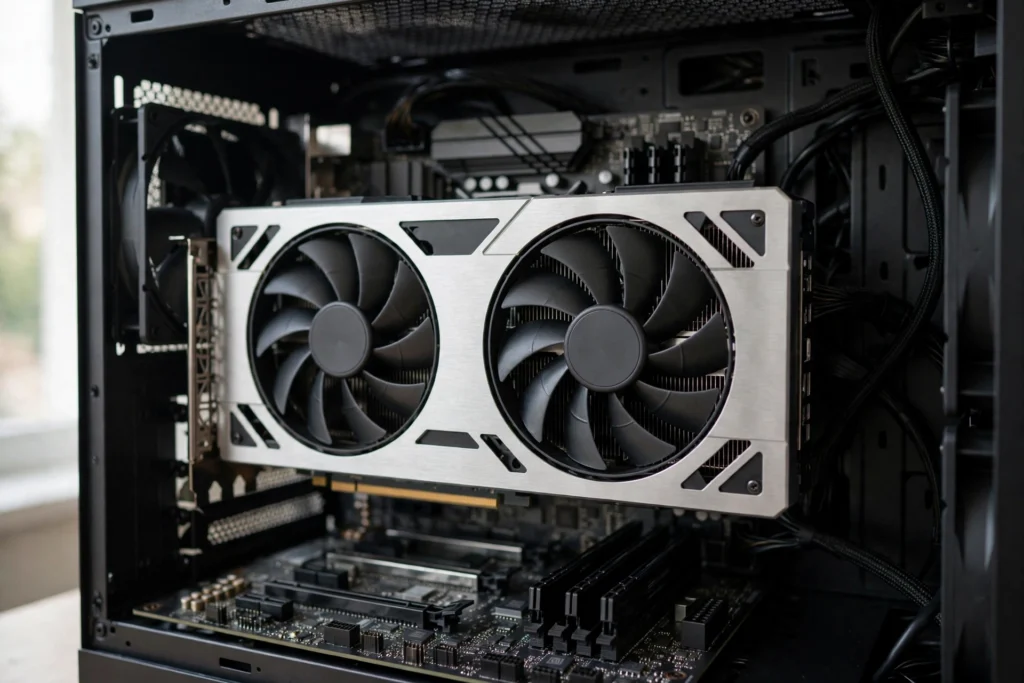
A graphics card turns instructions from your computer into the pictures on your screen. When you play a game or watch a video, it works out what every pixel should look like, many times per second, and sends each finished picture to your monitor. Without it, moving images would look rough or slow.
Key Takeaways
- A graphics card’s main chip, the GPU, does thousands of small calculations at once to build each frame.
- Its own video memory, called VRAM, holds textures, models, and frames so the card does not have to wait for the rest of the computer.
- Fans and heatsinks keep the card cool, because a hot card slows itself down to protect its parts.
- Your monitor, power supply, and computer case all need to suit the card you choose.
What Is a Graphics Card, Exactly?
Think of it as a small computer inside your computer, built for one job: drawing pictures fast. It sits in a slot on the motherboard, draws power from the power supply, and connects to your monitor with a cable. Most desktop graphics cards are separate boards you can see inside the case, with their own fans. Many laptops and smaller desktops instead use graphics built into the main processor, which shares memory with the rest of the system. That built-in option is fine for everyday work and video, but a separate card is usually much faster for games and heavy visual work.
The card does not work alone. The processor (CPU) handles the game’s rules, the story, and what should happen next, then hands the drawing work to the graphics card. The card also works alongside storage: your SSD loads game files quickly, while the graphics card turns those files into moving pictures. It is a team effort, and a weak link anywhere in that chain can show up as stuttering or slow loading.
How Does the GPU Draw a Frame?
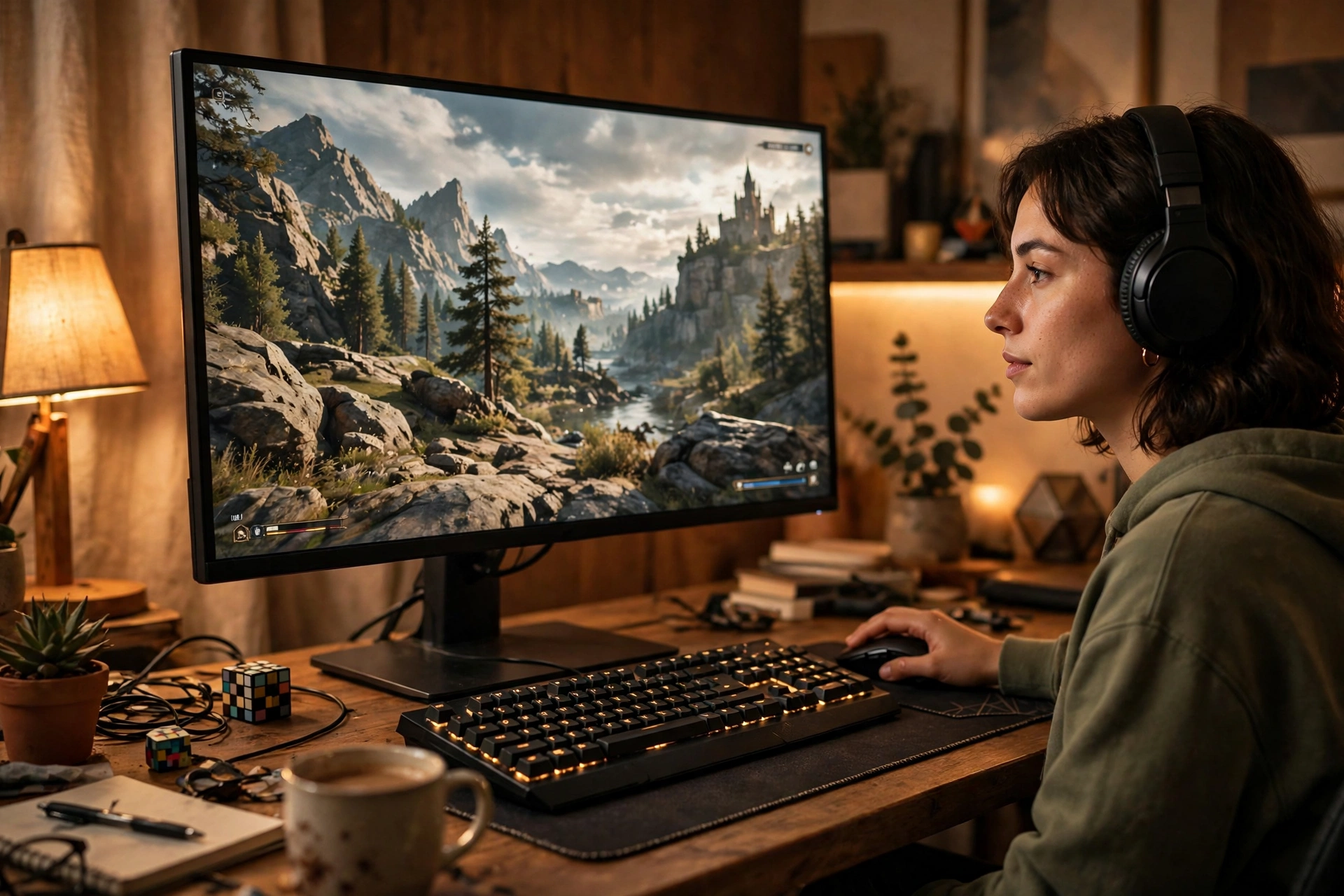
A frame is a single still picture, and a smooth game shows dozens of them every second. To draw one, the GPU starts with a scene description: the shapes of objects, their positions, the camera angle, and the lighting. It then works out which surfaces are visible, what colour each pixel should be, and how light, shadow, and reflections should fall on them.
The trick is that these calculations are mostly independent of each other. The colour of one pixel does not usually depend on the colour of the next, so the GPU can work on thousands of pixels at the same time. That is why graphics chips have thousands of small cores instead of a handful of powerful ones like a CPU. The CPU is brilliant at a few complicated decisions in order; the GPU is brilliant at a huge number of simple jobs in parallel.
Once a frame is drawn, it is stored briefly and sent to the monitor, which shows it and then waits for the next one. If the card cannot keep up, frames arrive late and movement looks jerky. If it keeps up comfortably, motion looks smooth, even if you never think about what is happening inside the case.
What Does Video Memory (VRAM) Do?
VRAM is the graphics card’s own fast memory, and it matters more than many buyers expect. It stores the textures that give surfaces their detail — the brickwork on a wall, the fabric on a jacket, the leaves on a tree — along with 3D models and finished frames waiting to go to the screen.
When VRAM runs out, the card has to borrow slower memory from the rest of the computer, and that round trip costs time. The result is often sudden stuttering when a game loads a new area or turns up its detail settings. More VRAM does not automatically make a card faster, though. A card with plenty of memory but a weak GPU will still draw slowly; the two need to match. For everyday use and lighter games, a modest amount is plenty, while detailed modern games at high resolutions ask for more.
Why Do Graphics Cards Get Hot, and How Are They Cooled?
All that parallel work uses a lot of electricity, and most of it ends up as heat. A card under full load can get far hotter than the air inside your case, so it needs a way to shed that heat. Most cards use a metal heatsink pressed against the chip, with fans blowing air across it and out of the case. Some high-end setups use liquid cooling instead, which moves heat to a radiator with its own fans.
If cooling cannot keep up, the card protects itself by slowing down, a behaviour called thermal throttling. You might notice a game running well for a few minutes, then dropping in smoothness as heat builds. That is why airflow matters: a card crammed into a case with blocked vents will struggle even if the card itself is good. Keeping vents clear and dust filters clean is one of the simplest things you can do for steady performance.
What Do the Ports and Power Connectors Do?
On the back of a graphics card you will find video outputs, usually HDMI and DisplayPort. These carry the finished picture to your monitor. DisplayPort is common on desktop monitors and often supports higher refresh rates, while HDMI is the standard on televisions and many laptops. The right choice usually depends on what your monitor supports, so it is worth checking before you buy a cable.
Inside the case, the card also needs power. Smaller cards can draw enough from the motherboard slot alone, but bigger ones need extra cables from the power supply. This is an easy detail to miss: a card that does not get enough power may crash under load or refuse to start at all. Checking the power supply’s wattage and spare connectors before buying saves a frustrating afternoon.
Do You Need a Graphics Card for Everyday Computing?
Not always. If you mainly browse the web, write documents, stream video, and use video calls, the graphics built into a modern processor are usually enough, and they use less power and cost less. You will notice a separate card most when you play detailed games, edit video, work with 3D models, or run several high-resolution monitors at once.
Even outside games, a card can help. Video editing software, photo tools, and some design programs can hand suitable work to the GPU and finish it faster. The same goes for streaming: a card can encode video while you play, taking that load off the processor. But if none of that describes your day, spending on a powerful card will not make web pages load faster or documents open sooner — those jobs depend more on the processor, memory, and storage, and on your connection, whether that is Wi-Fi at home or Bluetooth accessories like headphones and speakers.
What Should You Check Before Buying One?
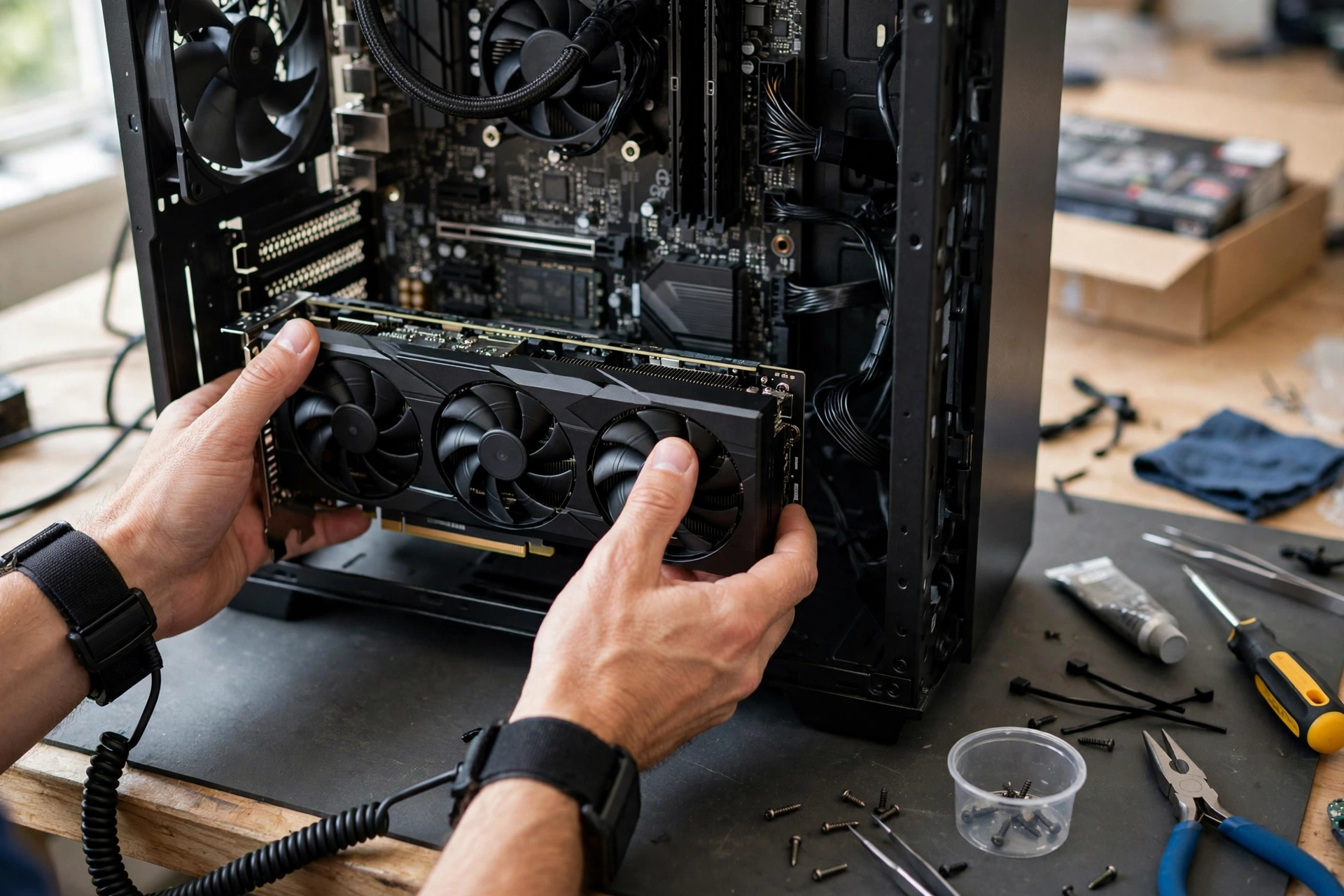
Start with what you actually do, not with the most powerful card you can find. A card matched to your monitor’s resolution and refresh rate is a better buy than a far stronger card whose extra power your screen cannot show. Next, measure your case: long cards do not fit in every desktop, and some need extra clearance for their fans. Then check your power supply, as above, and your monitor’s inputs.
It also helps to think about noise and heat. A card with a bigger cooler often runs quieter than a small one working flat out, which matters if your computer sits on your desk. And remember the rest of your setup: a fast card paired with a very old processor can be held back, just as a great mechanical keyboard cannot fix a slow computer. Balance, not one showpiece part, is what makes a computer feel quick.
FAQs
What is the difference between a GPU and a graphics card?
The GPU is the chip that does the drawing, while the graphics card is the whole board: the GPU plus its memory, cooling, power circuitry, and video outputs. People often use the two terms interchangeably, but strictly the card is the product you buy and install.
Does more VRAM always mean a better graphics card?
No. VRAM helps only up to the point where the card has enough for the detail and resolution you use. After that, the GPU’s own speed matters more, so compare both, not memory alone.
Why does my game stutter even though my graphics card is new?
Stuttering can come from several places: VRAM running out at high settings, the processor struggling, slow storage, or the card overheating and slowing down. Lowering detail settings or checking temperatures is a good first step before assuming the card is faulty.
Can I add a graphics card to a laptop?
Usually not in the same way as a desktop. Most laptops have fixed graphics, though some support an external graphics dock over a fast port. Desktops are far easier to upgrade, which is one reason people choose them for gaming.
How long does a graphics card last?
A card can keep working for many years, but its ability to run the newest games at high settings fades as games become more demanding. How long it feels fast enough depends on what you play and what settings you accept, not on a fixed expiry date.
Conclusion
A graphics card is, at heart, a specialist: it takes a scene description, works out millions of pixel colours in parallel, stores the pieces it needs in its own fast memory, and sends finished frames to your screen many times a second. Cooling, power, and ports are the unglamorous parts that decide whether it can keep doing that steadily.
If you are thinking about an upgrade, start with a practical next step: check your monitor’s resolution, measure the space inside your case, and confirm your power supply has the connectors a new card needs. That short checklist will narrow the choice far faster than comparing raw numbers alone, and it helps you buy a card that fits your computer — and your actual use — rather than one that only looks impressive on paper.