

A computer keyboard turns a finger press into a letter, number, or command on screen. Under each key sits a switch, and a small controller watches those switches, works out which key changed, and sends a short code to the computer, which then decides what character or action that code means.
Key Takeaways
- Each key press closes a switch, and a controller detects that change.
- Keys sit in a grid called a matrix, so the controller can watch many keys with fewer wires.
- The controller cleans up the signal, a step called debouncing, so one press is not read as several.
- Mechanical, membrane, and scissor switches feel different because they move and make contact in different ways.
- Wired keyboards usually use USB, while wireless keyboards usually use Bluetooth or a small radio receiver.
- Your computer’s software, not the keyboard alone, turns the key code into a letter, shortcut, or symbol.
How does a press become a letter?
It helps to follow one key from your finger to the screen. When you press, say, the letter A, the keycap moves down and pushes a switch underneath it. That switch completes an electrical connection, even if only briefly. The keyboard’s controller notices the change and looks up which key it belongs to.
The controller then sends a code for that key to the computer. Crucially, it does not usually send the letter itself. It sends a scan code, which is really just an identifier: “this key was pressed.” The operating system and the active program translate that code, taking into account whether Shift, Caps Lock, or another modifier is held down. That is why the same key can type a lowercase letter, an uppercase letter, or a symbol, depending on what else is happening at the time.
Release matters too. When you lift your finger, the switch opens again, and the controller sends a release code. Programs use that to know when a key is no longer held. Hold a key down, and the system repeats the character after a short delay, which is why a stuck key can fill a document with the same letter.
What is inside a keyboard?
Under the keycaps, most keyboards share the same basic parts. There is a printed circuit board, a set of switches or a membrane layer, a controller chip, and a cable or wireless radio. The keycaps themselves are just shaped covers, though their height, shape, and material do affect how typing feels and sounds.
The clever part is the key matrix. Instead of giving every key its own wire back to the controller, keys are arranged in rows and columns, like a grid. The controller scans the grid row by row, checking which column connections are active. This keeps the wiring manageable on a keyboard with more than a hundred keys, and it is one reason keyboards can stay thin and affordable.
A matrix also explains a quirk you may have met: ghosting. On some cheaper keyboards, pressing certain combinations at once can confuse the scan, and the keyboard may register a key you did not press, or miss one you did. Better designs use diodes or other circuitry to block those false paths, and gaming keyboards often advertise how many keys can be pressed together without trouble, a feature called rollover.
Why does a switch need debouncing?
A switch does not always close cleanly. At a tiny scale, its metal contacts may bounce against each other for a fraction of a millisecond when they meet, opening and closing several times before settling. Without any correction, the controller might read that bounce as several rapid presses.
Debouncing fixes this in hardware, software, or both. In simple terms, the controller waits a very short time and checks again, or it ignores further changes until the signal has settled. You never notice the delay, because it lasts only milliseconds, but without it, typing would be full of doubled letters and missed spaces. It is a small piece of engineering that makes everyday typing feel reliable.
What is the difference between membrane, mechanical, and scissor switches?
Most everyday keyboards use a membrane design. Under the keys sits a flexible sheet with printed circuits. Pressing a key pushes a rubber dome down until it makes contact on the membrane below. These keyboards are usually quiet, slim, and inexpensive, and they are common with laptops and bundled desktop keyboards. Their feel can be softer and less distinct, and a worn dome may feel mushy over time.
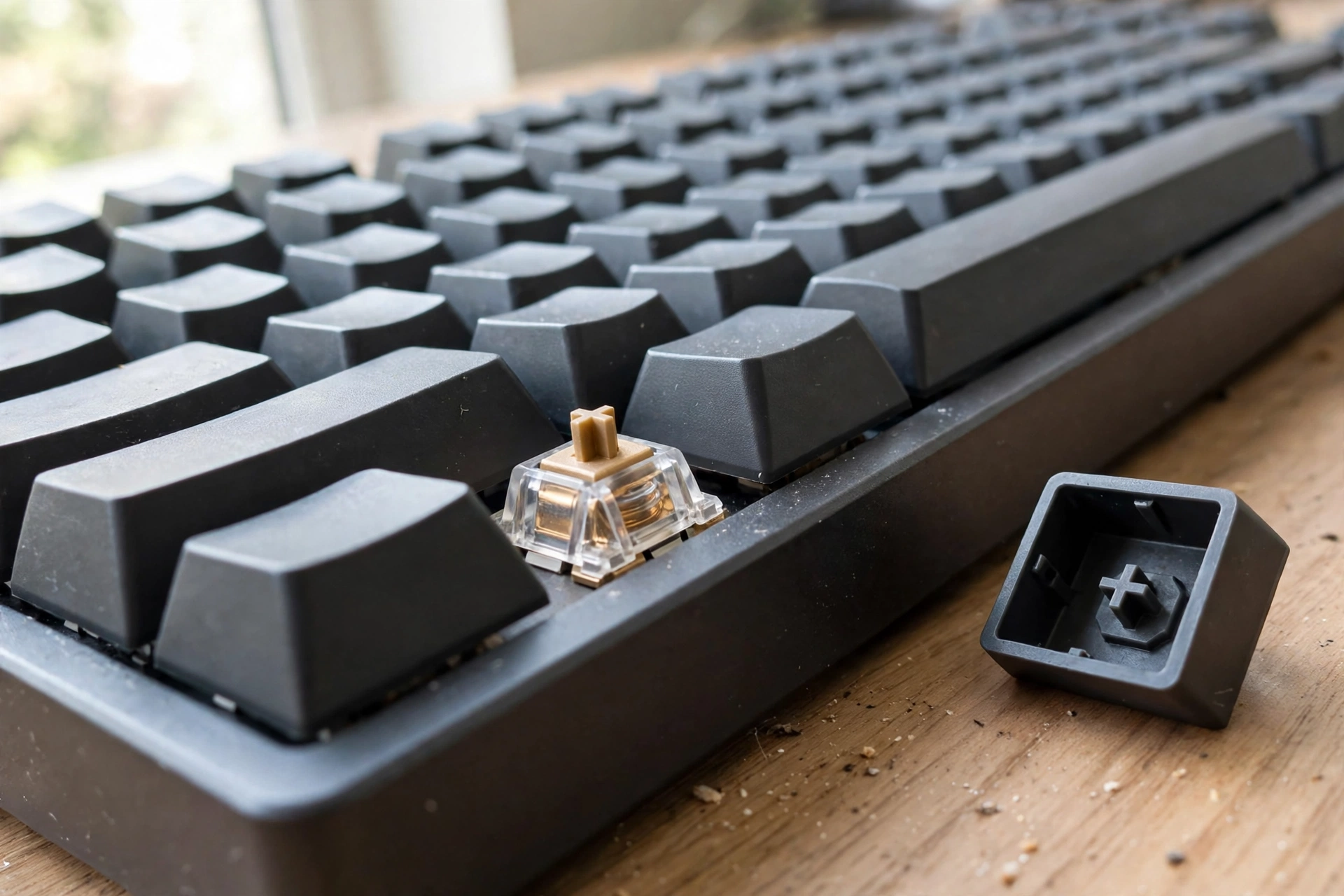
Mechanical keyboards use a separate switch under each key, with a spring and metal contacts. Pressing the key moves a stem down until the contacts meet, and the spring pushes it back up. Different switch designs change the force needed, the sound, and whether you feel a small bump as the key activates. Many typists prefer this clearer feedback, and individual switches can often be replaced, though mechanical keyboards tend to cost more and make more noise.
Scissor switches sit in between and are common in laptop keyboards. A small plastic scissor mechanism keeps the keycap level as it travels a short distance down to a membrane contact. The result is a low, stable key with a short travel, which suits thin laptops, though the keys are harder to repair individually than on a full-size mechanical board.
None of these types is automatically best. A quiet office may suit a membrane or scissor keyboard, while someone who types all day may prefer the distinct feel of mechanical switches. Trying a keyboard, if you can, tells you more than a specification sheet.
How do wired and wireless keyboards send their signal?
A wired keyboard usually connects by USB. The cable carries power and data, so there is no battery to charge and no pairing step. The computer reads the keyboard as soon as it is plugged in, which is one reason wired keyboards remain popular for shared desks and gaming setups. Their main drawback is simply the cable, which limits where the keyboard can sit.
A wireless keyboard needs a radio link instead. Many use Bluetooth, which connects directly to a computer, tablet, or phone that supports it. Others use a small USB receiver that talks to the keyboard on its own radio frequency. Bluetooth can be handy when you switch between devices, while a dedicated receiver can feel simpler on a desktop that stays in one place.
Wireless keyboards also need power, usually from rechargeable batteries or replaceable cells. When a wireless keyboard stops responding, a flat battery or a lost connection is often the cause, well before any fault in the keys themselves. Keeping the receiver or Bluetooth pairing in mind helps with troubleshooting: if the computer cannot see the keyboard at all, the link, not the letter A, is the problem.
That wireless link is worth comparing with other everyday connections. Bluetooth is designed for short-range device pairing, while Wi-Fi carries much larger amounts of network data. A keyboard needs only tiny bursts of data, so a low-power radio is enough, and that is why a wireless keyboard battery can last weeks or months.
What about layouts, sizes, and special keys?
Most keyboards you meet use a familiar letter layout, with function keys along the top, a number row, and modifier keys such as Shift, Ctrl, and Alt. Full-size keyboards add a number pad on the right. Smaller keyboards drop that pad, and the smallest drop navigation and function keys too, saving desk space at the cost of reaching some keys through combinations.
Layouts also differ by language and region. The letters may stay in familiar places, but symbols, punctuation, and the shape of the Enter key can change. That is a software setting as much as a hardware one: if the computer is set to the wrong layout, a key may type a different symbol from the one printed on it, even though the keyboard itself is working perfectly.
Special keys add another layer. Media keys can change volume or skip a track, and some keyboards have a key that opens a search or calculator app. These usually send their own codes, and the computer decides what to do with them. If a media key does nothing, the program in use may simply have no action assigned to it, rather than the keyboard being broken.
How does a keyboard work with a mouse and monitor?
A keyboard rarely works alone. You point and click with a computer mouse, and you read the result on a computer monitor. The keyboard sends key codes, the mouse sends movement and clicks, and the monitor shows the combined result. The computer keeps these input streams separate, so you can type while moving the mouse without the two getting mixed up.
This division also explains why a keyboard fault can look like a software fault. If typed text appears in the wrong window, the keyboard may be fine, but the focus may be on another program. Clicking into the right window first, then typing, is a quick check that saves a lot of unnecessary cable swapping.

How do you choose a keyboard, and how do you look after it?
Start with how and where you will use it. If you type for hours, key feel and comfort matter more than extra features. If desk space is tight, a smaller layout may suit you better. If you move between a computer and a tablet, Bluetooth and a built-in battery may matter most. Noise matters too: a loud mechanical keyboard that you love at home may not suit a shared office.
Once you have one, simple care goes a long way. Keep drinks away from it, since liquid can short a membrane or corrode contacts. A gentle shake upside down, or a soft brush, can clear crumbs from between keys. For a mechanical keyboard, keycaps can often be pulled off carefully for cleaning, but check the maker’s guidance first, since forcing a laptop key can break its scissor mechanism.
If a single key stops working, try the keyboard on another computer or port first. That simple test separates a keyboard fault from a software or connection problem. If several keys fail in one row or area, the matrix or cable may be damaged, and replacement is often more practical than repair for an inexpensive board.
FAQs
Why does my keyboard type the wrong symbol?
The most common cause is a mismatched keyboard layout setting. Check that the computer’s language and layout match the keyboard in front of you, then test the key again.
Why do some keys repeat when I press them once?
A worn or dirty switch can bounce, or a key may be sticking. Debouncing normally prevents this, but a damaged switch can still send repeated signals. Cleaning around the key, or trying another keyboard, can confirm the cause.
Do wireless keyboards lag?
Most modern wireless keyboards feel instant for typing and office work. A weak battery, interference, or a receiver blocked behind a metal desk can cause missed keystrokes, so try fresh batteries and a clear line to the receiver first.
What is N-key rollover?
It means the keyboard can register many keys pressed at once without missing or inventing any. It matters most for fast typing and gaming, where several keys may be held down together.
Can I use a keyboard with a tablet or phone?
Yes, in many cases. Bluetooth keyboards pair with tablets and phones, and some wired keyboards work through an adapter. Check that the device supports external keyboards and that its layout setting matches your keyboard.
Conclusion
A keyboard works by turning a simple physical action into a clean digital signal: a switch closes, a controller scans its matrix, debouncing tidies the signal, and a code travels by cable or radio to the computer. The software then turns that code into the letter or command you intended.
If you want to understand your own keyboard better, a practical next step is to notice its feel and behaviour for a day: which keys feel crisp, which feel soft, and whether any key misses or repeats. That tells you whether your next keyboard should be membrane, scissor, or mechanical, and whether wired or wireless suits your desk. For background reading, see Wikipedia’s article on computer keyboards and Computer Hope’s guide to keyboards.