
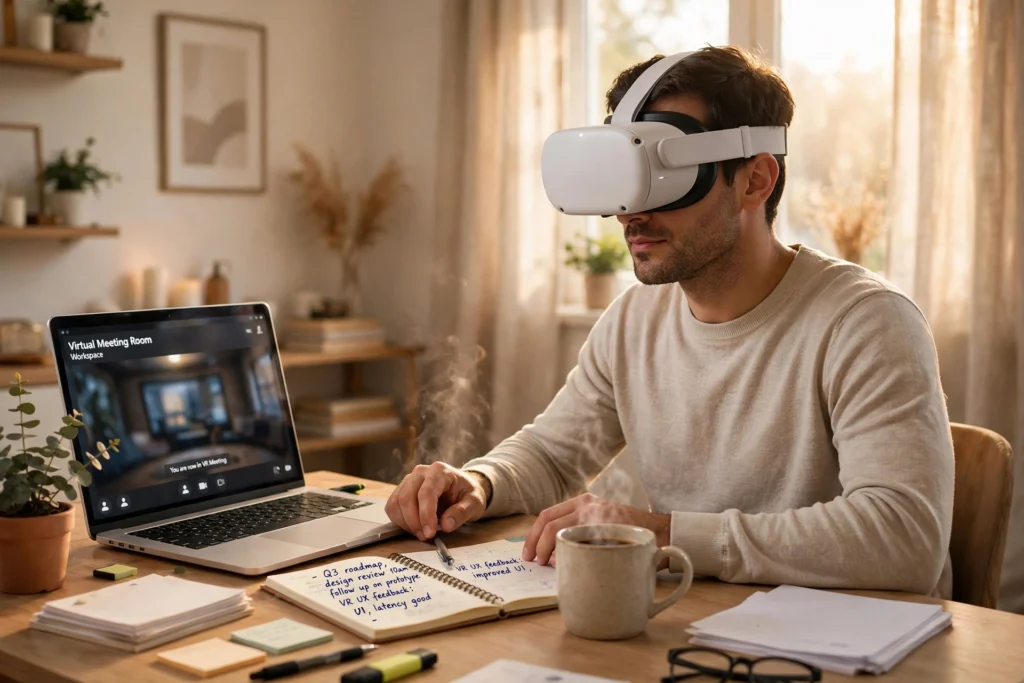
VR remote work puts you and your colleagues in a shared virtual room, even when everyone is at home. You wear a headset, appear as an avatar, and can talk, look around, share a screen, and work on a whiteboard together, while teammates without a headset often join from a normal video call.
Key Takeaways
- A VR meeting is a shared 3D room, not just a grid of video tiles.
- Avatars, spatial audio, and shared screens do most of the teamwork.
- You do not always need a headset: many platforms let others join by video.
- Short, focused sessions work better than wearing a headset all day.
- Check comfort, privacy, and your internet connection before you commit to a VR workday.
What does a VR office actually look like?
Picture a meeting room that only exists in software. When you put on the headset, you see a table, chairs, a screen, and avatars sitting around it. Turn your head and the view turns with you. Walk, or use a controller to move, and your avatar moves too. It is not magic, and it is not a real office. It is a carefully built illusion, and for some kinds of work that illusion is genuinely useful.
How do you join a VR meeting?
Joining usually starts the same way as any other meeting: you get a link or an invitation. From there, the path splits.
If you have a headset, you open the meeting app, choose the room, and step in as your avatar. You may need to set up a safe play area first, especially if you plan to stand or move around. A seated setup is fine for most meetings, and it is the safer choice in a small room.
What can you actually do in a virtual office?
The best VR work sessions focus on things that are awkward in a flat call. Brainstorming is a good example. Instead of everyone talking over each other while one person shares a screen, people can gather around a virtual whiteboard, add notes, move ideas around, and point at the one they mean. It feels closer to standing at a real whiteboard, even if the pens are virtual.
Design reviews work well too. A team can walk around a 3D model of a product, a building layout, or a training scene, and discuss it from different angles. That is hard to do with screenshots. For training, a virtual room can recreate a situation that would be costly or unsafe to practise in real life, such as handling equipment or guiding a customer through a tricky procedure.
Not every task benefits, though. Writing a long report, answering dozens of emails, or doing detailed spreadsheet work is usually faster on a normal monitor. VR is best as a meeting and collaboration tool, used in short bursts, rather than a replacement for your whole desk.
How does VR handle screens, files, and notes?
Think of a VR office as a meeting room with extra screens. You can open a document, a slide deck, or a browser window on a virtual display, and everyone in the room can look at the same thing at the same time. The host can usually control who can share, who can draw on a board, and who can move objects around.

What are the limits and downsides?
VR remote work has real limits, and it helps to name them before you buy anything. Comfort comes first. Headsets can feel heavy after a while, and some people feel dizzy, especially if the virtual movement does not match their real movement. Short sessions, regular breaks, and a seated position reduce that risk a lot. If you feel unwell, stop. No meeting is worth pushing through nausea.
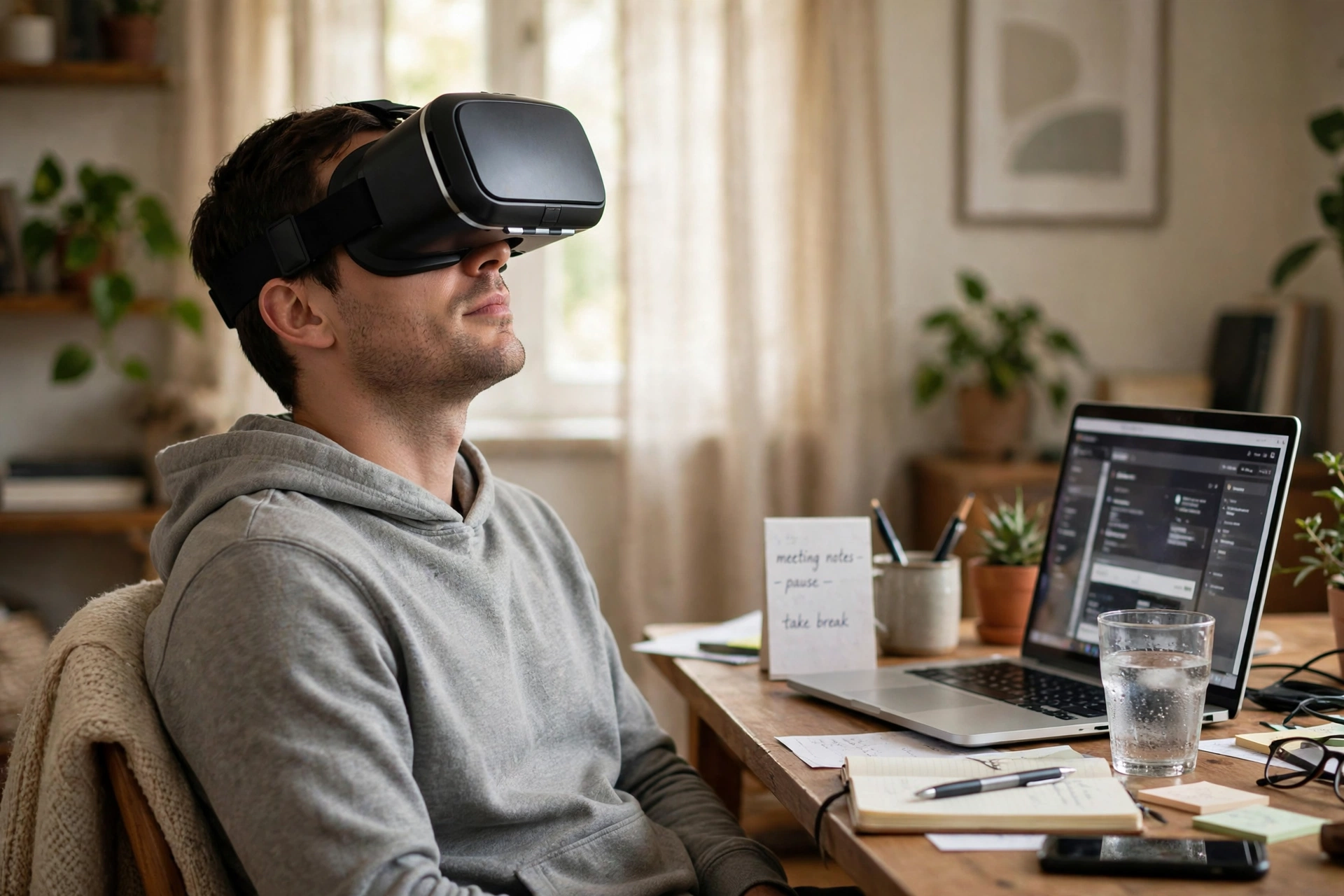
Privacy is the third. A VR meeting app may collect voice, movement, and room data to make avatars and tracking work. Read the privacy settings for the app your team uses, check what is recorded, and do not share sensitive information in a virtual room unless your organisation has approved that tool for it. Also, be careful about what your headset cameras can see in passthrough mode, and keep private papers or screens out of view.
How should a team try VR remote work for the first time?
Start small. Pick one kind of meeting that already feels clumsy on video, such as a weekly brainstorm or a design review, and try that in VR. Keep it to 30 minutes or less. Invite a mix of headset users and video joiners, so you learn how the mixed setup really feels.
Agree on a few ground rules before you start. Who shares the screen? Who takes notes? How do you signal that you want to speak? In a virtual room, raising a virtual hand or simply saying a name out loud works better than waiting for a pause that never comes.
A practical first setup does not need to be fancy. One charged headset, a quiet room, a stable connection, and a meeting app your team already trusts are enough to test the idea. You can add more headsets later if the trial earns them.
FAQs
Do I need a VR headset to join a VR work meeting?
Not always. Many platforms let people join from a computer or phone by video, while headset users appear as avatars in the same room. Check the invitation before the meeting, because the exact options depend on the app your team uses.
Is VR better than a video call for remote work?
It can be better for brainstorming, design reviews, and training, where shared space and gestures help. For routine updates, document writing, and long focused work, a normal video call or a monitor is usually simpler and more comfortable.
How long should a VR work session last?
Short sessions work best for most people. Try 30 minutes to start, take a break, and build up only if you feel comfortable. If you feel dizzy, tired, or strained, stop and switch to video or audio.
Can I use my normal computer in VR?
In many setups, yes. You can bring a screen into the virtual room, and some headsets show your physical keyboard through their cameras. Detailed typing and spreadsheet work are still usually easier on a real monitor, so use VR for the meeting part and your desk for the deep work.
Is VR remote work private and secure?
It depends on the app and your organisation’s settings. Use only approved tools for work, check what is recorded, and avoid sharing sensitive details in a room you do not control. Save decisions and files in your team’s normal system after the meeting.
Conclusion: try VR where presence actually helps
VR remote work is not a replacement for your office, and it is not a replacement for video calls. It is a useful middle option: a shared room you can step into when presence, gestures, and a shared board make a meeting easier. Start with one short, focused session, include video joiners, save your notes in the normal place, and judge it by whether the work got easier. If it did, you have found a good use for it. If it did not, you have still learned something useful about how your team works best.
Next step: pick one upcoming brainstorm or review, book it for 30 minutes in VR, and compare it honestly with the same meeting on video.