
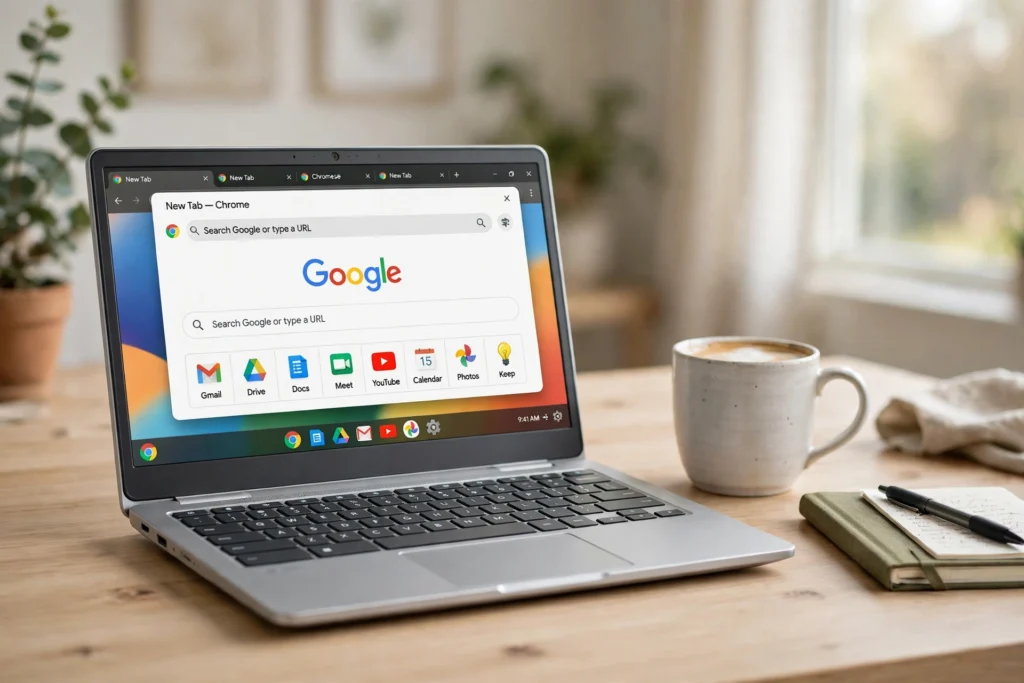
A Chromebook is a laptop that runs ChromeOS, Google’s lightweight operating system built around the Chrome browser. Instead of installing heavy desktop programs, you mostly use web apps and Android apps, and your files live in Google Drive rather than on the machine. The result is a fast, cheap, low-maintenance laptop — with a few clear limits.
Key Takeaways
- A Chromebook runs ChromeOS, not Windows or macOS, and most apps run in the browser or from the Google Play Store.
- Your files live mainly in Google Drive, so signing in on any Chromebook brings your work with you.
- Chromebooks boot in seconds, update themselves, and are hard to infect thanks to sandboxing and verified boot.
- They suit browsing, schoolwork, documents, video calls, and streaming — not heavy video editing or Windows-only software.
- Google promises up to 10 years of updates from a Chromebook’s hardware platform release date, so check the expiry date before buying.
How is a Chromebook different from a normal laptop?
The difference starts with the operating system. A Windows laptop or a Mac runs a full desktop system built to install large programs locally. A Chromebook runs ChromeOS, built around the Chrome browser and your Google account. Switch it on, sign in, and your bookmarks, settings, Wi-Fi passwords, and apps sync across every Chromebook you use.
Because most work happens in web apps, a Chromebook needs far less power and storage than a traditional laptop. That is why so many sell for under $300, weigh little, and last 10 hours or more on a charge — and why they feel fast on modest hardware, with less software getting in the way.
The keyboard differs, too: Caps Lock is replaced by a Search key that opens the app launcher, much like the app drawer on an Android phone. Along the bottom of the screen is the shelf, where you pin favourite apps, just as you would on the Windows taskbar.
What can you actually do on a Chromebook?
More than the “just a browser” reputation suggests. Daily life works without fuss: Gmail, Google Docs, Sheets and Slides, YouTube, Netflix, video calls on Meet or Zoom, and photo editing in Google Photos. Docs and Drive work offline too, and your changes sync back once you reconnect, so a dead Wi-Fi signal does not stop you writing.
Android apps widen the range further. The Google Play Store is built into modern Chromebooks, so you can install the same apps you use on your phone. Advanced users can also switch on the built-in Linux environment to run desktop Linux software. Wireless accessories connect over Bluetooth, so a mouse or headphones pair in seconds, and your phone can sit on a wireless charging pad beside the laptop while you work.
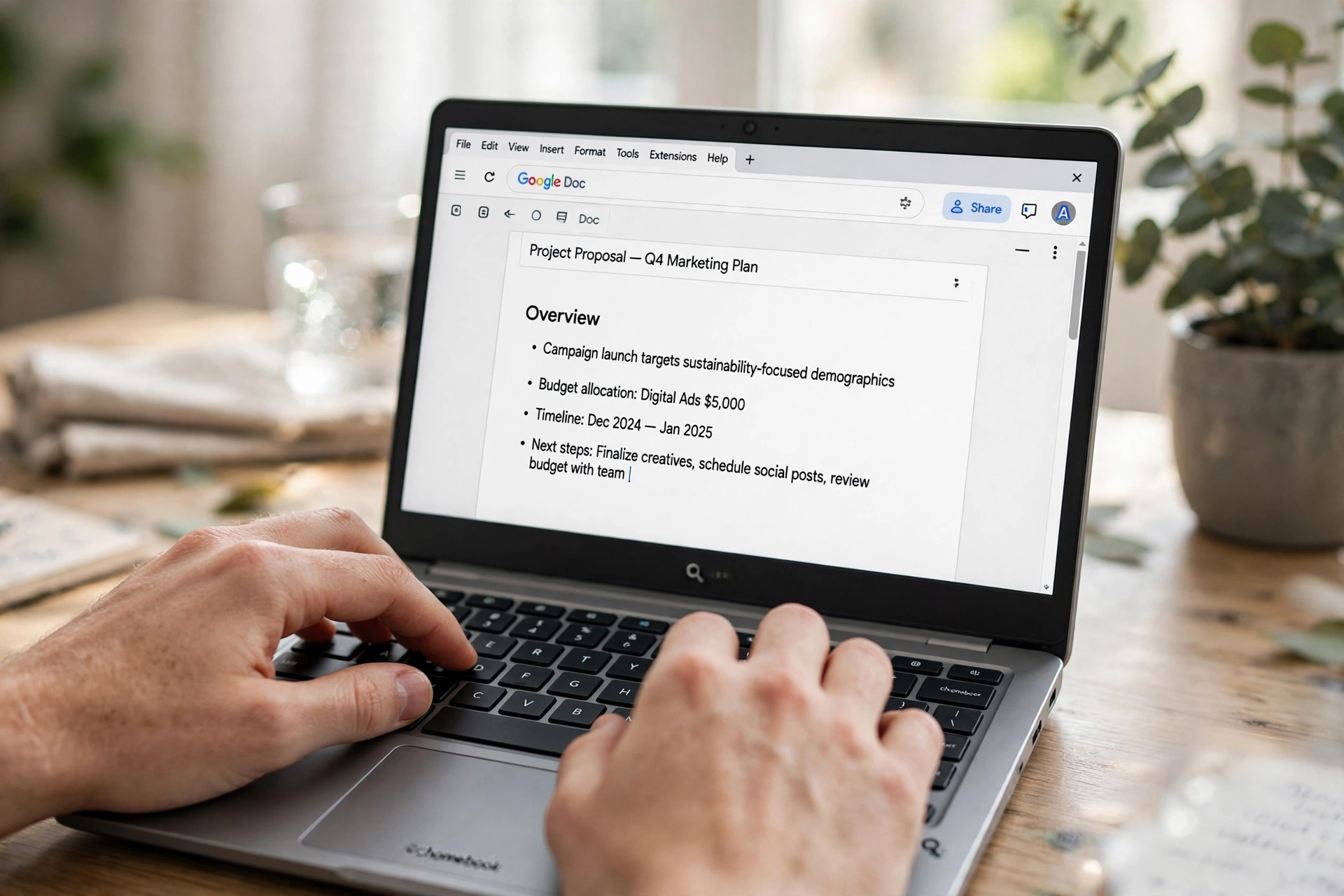
Security is the quiet strength. Each tab and app runs in its own sandbox, so a problem in one cannot spread to the rest of the system. ChromeOS checks itself for tampering every time it boots, and updates install when you restart. You do not need antivirus software or to remember to patch anything — a real advantage for a shared family laptop or a classroom of devices.
What can’t a Chromebook do?
There are real limits. A Chromebook cannot install Windows programs, so if your work depends on a specific .exe file — a specialist CAD tool, a desktop-only accounting package, a particular game — a Chromebook will not run it. It cannot install macOS apps either.
Storage is the second limit. Many Chromebooks ship with 64GB or 128GB of local storage, which sounds small next to a 512GB Windows laptop. The design assumes your files live in the cloud: every Google account includes 15GB of free Google Drive storage, shared across Drive, Gmail, and Google Photos, and you can pay for more.
Gaming is the third. Chromebooks handle casual Android games and cloud gaming well, but they are not built for demanding PC games installed locally. Video editing follows the same pattern: light edits in web apps are fine — you can review clips from an action camera in a browser editor — but a heavy 4K timeline belongs on a more powerful machine.
How long will a Chromebook keep getting updates?
Longer than most people expect. Under Google’s Auto Update policy, ChromeOS devices receive 10 years of automatic updates from the date their hardware platform was released, covering the operating system, the browser, and security fixes together.
That makes one buying tip essential: check the Auto Update expiry date before you buy, especially for a second-hand or discounted older model. A bargain Chromebook with only two years of updates left is a worse deal than a slightly dearer one with eight.
Chromebook vs Windows laptop vs MacBook
| Feature | Chromebook | Windows laptop | MacBook |
|---|---|---|---|
| System | ChromeOS | Windows | macOS |
| Main apps | Web apps + Play Store | .exe installers, Microsoft Store | App Store, .dmg installers |
| Storage | Google Drive (cloud first) | Local drive | Local drive + iCloud |
| Typical price | Often under $300 | $400–$1,500+ | $999 and up |
| Boot time | Usually under 10 seconds | 20–60 seconds | 15–30 seconds |
| Updates | Automatic, 10-year policy | User-managed | Automatic |
| Best for | Browsing, school, documents | Widest software choice | Creative work, Apple ecosystem |
If your work lives in a browser and a handful of apps, the Chromebook column wins on price and simplicity. If you need specific desktop software, the other columns earn their higher prices.
A worked example: a first week with a $249 Chromebook
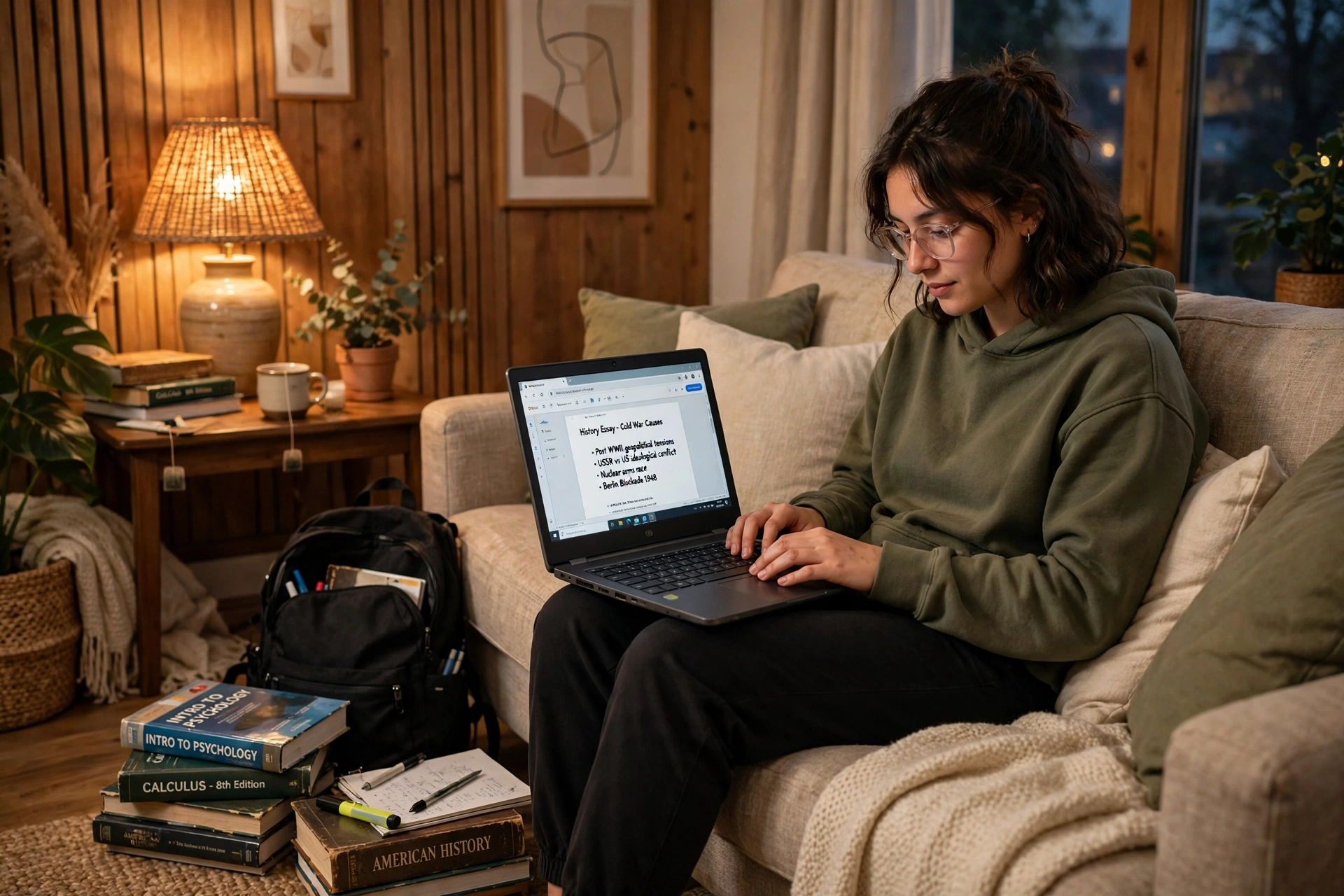
Maya, a first-year student, bought a $249 Chromebook for her coursework. On Monday she signed in with her Google account and her bookmarks, Drive files, and Docs appeared at once — nothing to install. By Wednesday she had written two essays in Docs and joined a seminar on Meet, without once thinking about updates or antivirus. On Friday she set Docs to work offline, so the train home with patchy Wi-Fi cost her nothing.
The one snag came on Sunday, when a classmate sent her a desktop-only statistics program. It would not run on ChromeOS, so she used the university computer lab for that one task. That is the honest shape of Chromebook life: smooth and cheap for the everyday 95%, with an occasional workaround for the rest.
Who should buy a Chromebook — and who shouldn’t?
A Chromebook is a strong buy if you live in Google’s world already, if you want a second laptop for travel or the sofa, or if you are buying for school, a parent, or a child. It is also the simplest choice for anyone who finds Windows updates and antivirus pop-ups a chore: there is almost nothing to maintain.
Skip it if your work depends on Windows-only or Mac-only software, if you edit large video projects, or if you play demanding PC games. In those cases the money saved will be spent again on workarounds, and a Windows laptop or MacBook is the honest recommendation.
Frequently asked questions
Is a Chromebook a real laptop?
Yes. It has a keyboard, a screen, storage, and a full operating system — it simply runs ChromeOS instead of Windows or macOS, and leans on web apps and cloud storage rather than installed desktop software.
Can a Chromebook work without Wi-Fi?
Partly. Docs, Sheets, Drive files, and Gmail can all work offline and sync when you reconnect, and many Android apps work offline too. But browsing and streaming need a connection, so a Chromebook is at its best with reliable Wi-Fi.
Do Chromebooks get viruses?
It is very rare. ChromeOS sandboxes every app and tab, checks itself for tampering at boot, and updates automatically. No antivirus subscription is needed, though the usual advice still applies: be careful with suspicious links.
Can I use Microsoft Office on a Chromebook?
Yes, through the web versions of Word, Excel, and PowerPoint, or the Android apps from the Play Store. The web versions cover most everyday documents, though a few advanced desktop features are missing.
How do I check a Chromebook’s update expiry date?
Look up the model’s Auto Update expiry date on Google’s support pages before buying. Google guarantees up to 10 years of updates from the hardware platform’s release date, so an older model may have far less support left than a new one.
The bottom line
A Chromebook is the simplest laptop you can buy: cheap, fast to start, secure by design, and happy living in the cloud. It will not replace a powerful Windows laptop or a MacBook for specialist work, but for browsing, studying, writing, calls, and streaming, it does the job with less fuss and less money than anything else on the shelf.
If that sounds like your computing life, pick a model, check its Auto Update expiry date, and make sure it has the screen size and storage you need — then try one in a shop first, because the keyboard and screen matter more than the spec sheet.
Further reading: HP’s Chromebook glossary explains ChromeOS, apps, and storage in more depth, and Google’s own Chromebook site shows the current range.