
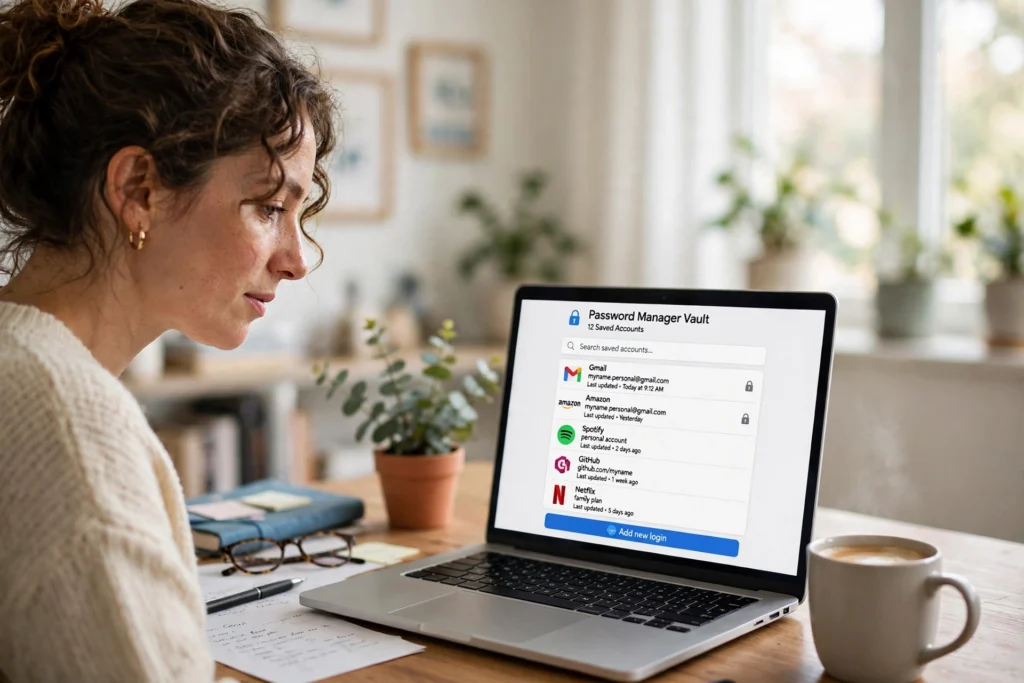
A password manager remembers every login for you, so you only have to remember one. It stores your usernames and passwords in an encrypted vault, creates strong passwords when you need them, and fills them in when you sign in. Here is how the vault, the master password, and autofill work together — and how to use one safely.
Key Takeaways
- A password manager keeps all your logins in one encrypted vault, locked by one master password.
- It creates a different password for every account, so one leak does not risk the rest.
- Autofill matches saved logins to the site you are on, which also helps expose phishing pages.
- Your master password is the one thing to protect: make it long, memorable, and known only to you.
- Most password managers now store passkeys too, which can replace passwords on supported sites.
What is a password manager?
A password manager is an app that keeps your login details in one place. Instead of memorising dozens of passwords — or reusing the same one everywhere — you save each login once, and the app looks after it. It works on your phone, laptop, and browser.
Think of it like a smart lock for your online life: one key opens a secure box, and inside sits a separate key for every door.
How does the vault keep passwords safe?
The vault is an encrypted file. When you save a password, the app scrambles it with a key made from your master password, and only that key can unscramble it. A cloud-based manager stores the scrambled version on its servers and never sees the readable one, because unscrambling happens on your device.
That matters when things go wrong. If a provider’s servers are breached, attackers get encrypted blobs, not readable passwords — and guessing the master password behind the key is deliberately made slow and expensive. Pick a strong one, turn on two-factor authentication, and check the UK National Cyber Security Centre’s password guidance for current advice.
What happens when you sign in?
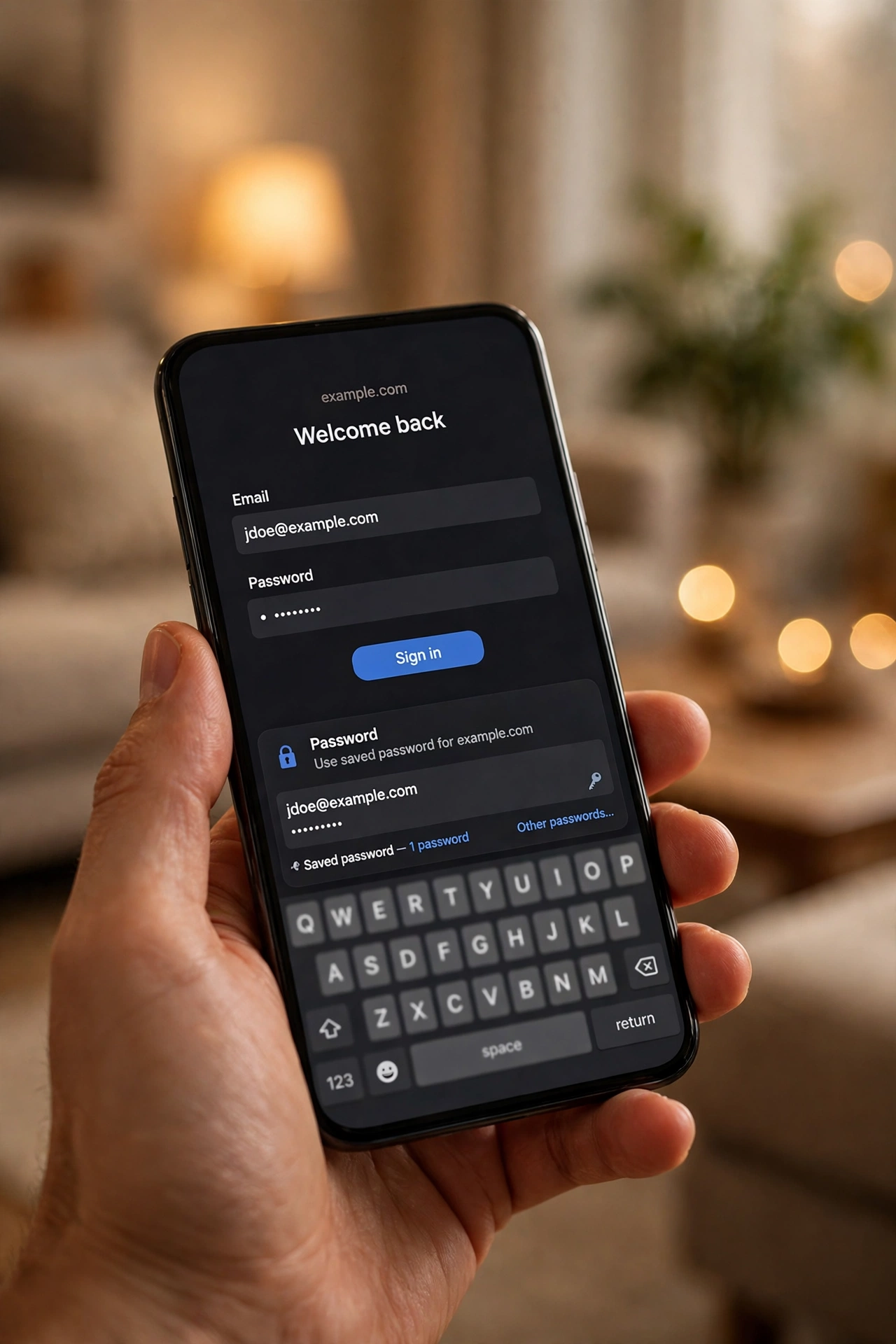
You open a login page, and the password manager offers to fill in the right username and password — above the keyboard on your phone, or in a small prompt beside the field in your browser. One tap, and you are in. It can also save a login the first time you type it.
Behind that tap, the app checks the page’s address against its saved entries. If nothing matches, it offers nothing — so if you land on a lookalike page after clicking a dodgy link, the password manager stays silent. A blank autofill prompt is a hint that something is off.
How does it create strong passwords?
When you sign up somewhere new, the password manager can invent the password for you. You choose the length and the mix of characters, and it produces something random — say, a 20-character string no human would guess. It goes straight into the vault, so you never type it or memorise it.
That removes the usual trade-off. People reuse short, memorable passwords because remembering twenty different ones feels impossible. A generator flips that around: every account gets its own long, unique password. If one site is breached, the stolen password is useless everywhere else.
What is a master password?
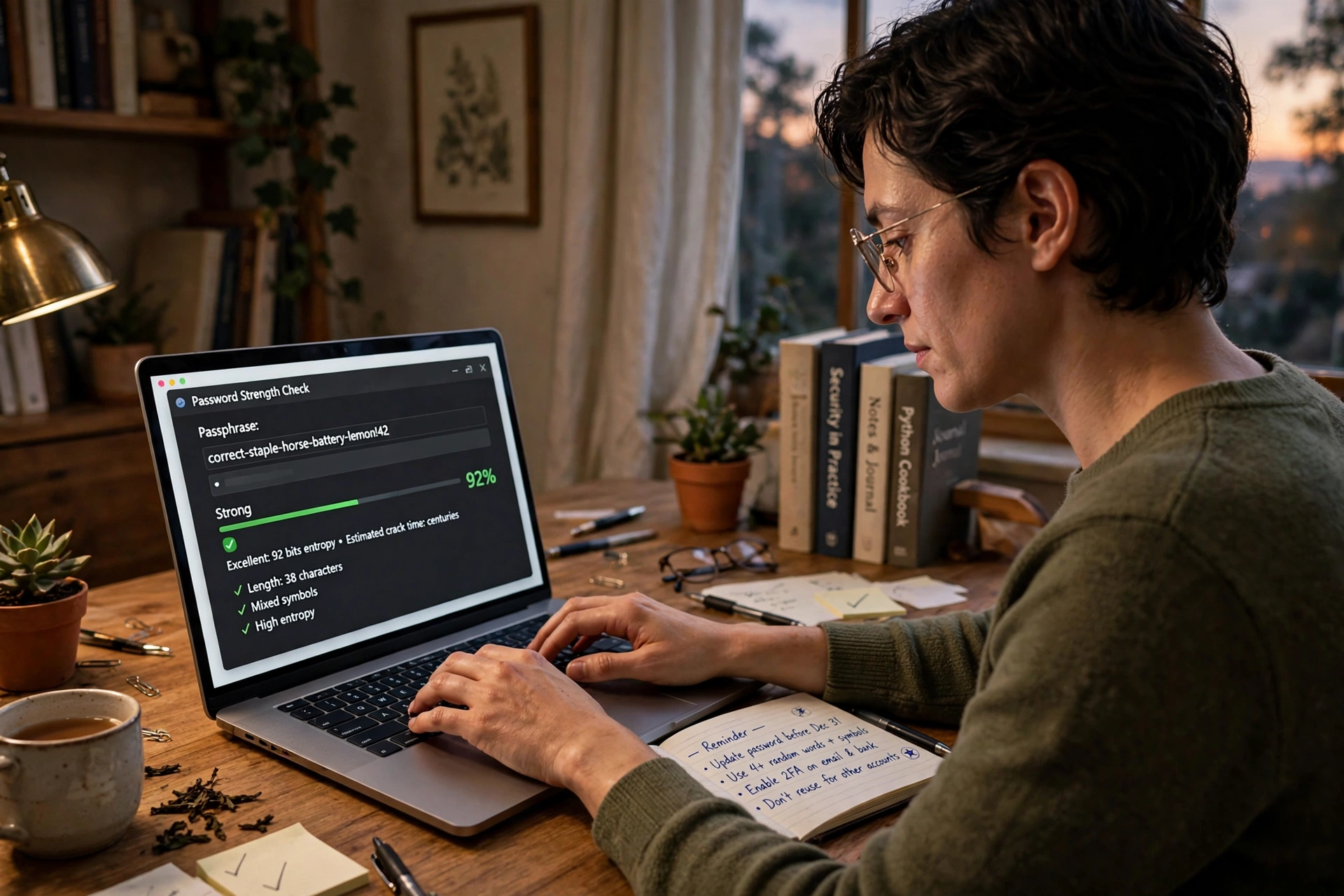
The master password unlocks your vault, so it deserves more thought than any you have chosen before. The best ones are long but memorable: four or five random words, perhaps with a number or symbol, beats a short jumble you will forget by Tuesday.
Forgetting it is the one real risk: nobody at the company can reset it for you, because they never had it. So write it on paper, keep that paper somewhere safe at home, and set up a recovery option — an emergency contact or a printed recovery code — before you need it. Some managers also let you unlock the vault with your fingerprint or face, in the same way a smartwatch can approve a sign-in from your wrist.
Are password managers safe?
For most people, yes — it is safer than the habits it replaces. Reusing passwords and keeping them in a spreadsheet are both riskier than a well-chosen vault. A reputable manager, a strong master password, and two-factor authentication together are a solid setup.
Still, it is not magic: it protects your stored passwords, but it cannot stop you handing them over yourself. If a fake login page tricks you into typing your master password, the vault cannot save you. So be careful with links in unexpected messages, keep your devices updated, and do not install software from places you do not trust. On public Wi-Fi, a password manager’s refusal to autofill on an unfamiliar address is genuinely helpful.
How do passkeys fit in?
Passkeys are a newer way to sign in that many password managers now support. Your device stores a private key, the site keeps the matching public key, and you approve the sign-in with your fingerprint or face. With no password to steal or guess, phishing pages have nothing useful to capture — much like tap to pay, which proves who you are without handing over your card details.
Passkeys are not everywhere yet, so a password manager that handles both is a sensible choice: it stores your passwords today and your passkeys as sites start offering them.
How do you start?
Pick one with a clear privacy policy, a history of independent security audits, and apps for the devices you use. Create a long master password from random words, turn on two-factor authentication, and write it down somewhere safe. Then save logins as you go — email first, then banking, then social media.
Work through the vault’s warnings over a few weeks, starting with email and banking, and let the generator make a fresh password for each reused one. Set up recovery too, so a forgotten master password does not lock you out. After a month, you stop resetting passwords — the manager takes the remembering off your plate.
Frequently asked questions
Is a free password manager good enough?
Often, yes. The built-in managers in major browsers and phone systems cover the basics well, and several standalone apps have free tiers. What matters most is that you actually use it — and that the provider is reputable and still maintained.
Can a password manager be hacked?
Like any software, it can have flaws, and a few providers have had breaches. In the incidents that mattered, attackers took encrypted vaults, and strong master passwords kept them locked. That is why the master password and two-factor authentication matter so much.
What if the company behind it closes down?
Your vault is usually stored on your own devices as well as in the cloud, so you can export it and move to another provider — then delete the export file. Check the export option works before you depend on it.
Should I still use two-factor authentication?
Yes. A password manager handles passwords; two-factor authentication adds a second check, such as a code from an authenticator app. Turn it on for your email and banking first, and for the password manager account itself. The two tools work best together.
Do I still need to remember any passwords?
Just one: your master password. Everything else lives in the vault. Keep a written copy somewhere safe at home, and set up your recovery options before you need them.
Conclusion
A password manager keeps all your logins in one encrypted vault, protected by a single master password that only you know. It generates a different strong password for every account, fills them in when you sign in, and refuses to fill them in on pages it does not recognise. That fixes the problem most people actually have: too many accounts, too little memory, and the same password doing too many jobs.
If you take one step today, make it this: pick a password manager, set a long master password, and save your email login first — email is the key to resetting almost everything else. From there, add one or two logins a day, and within a few weeks your vault will be doing the remembering for you.